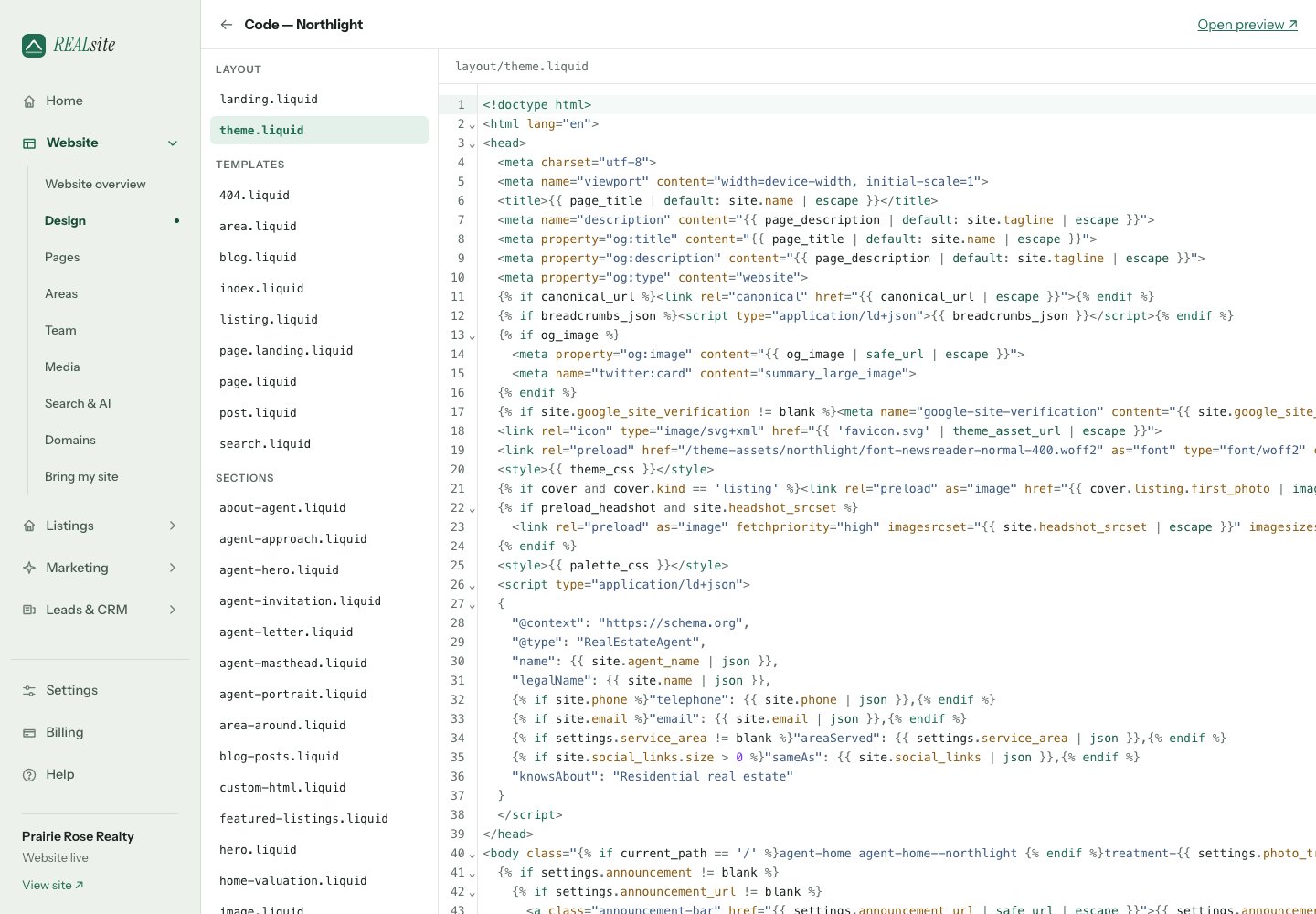
 Create `sections/neighbourhood-spotlight.liquid`:
```liquid theme={null}
Create `sections/neighbourhood-spotlight.liquid`:
```liquid theme={null}
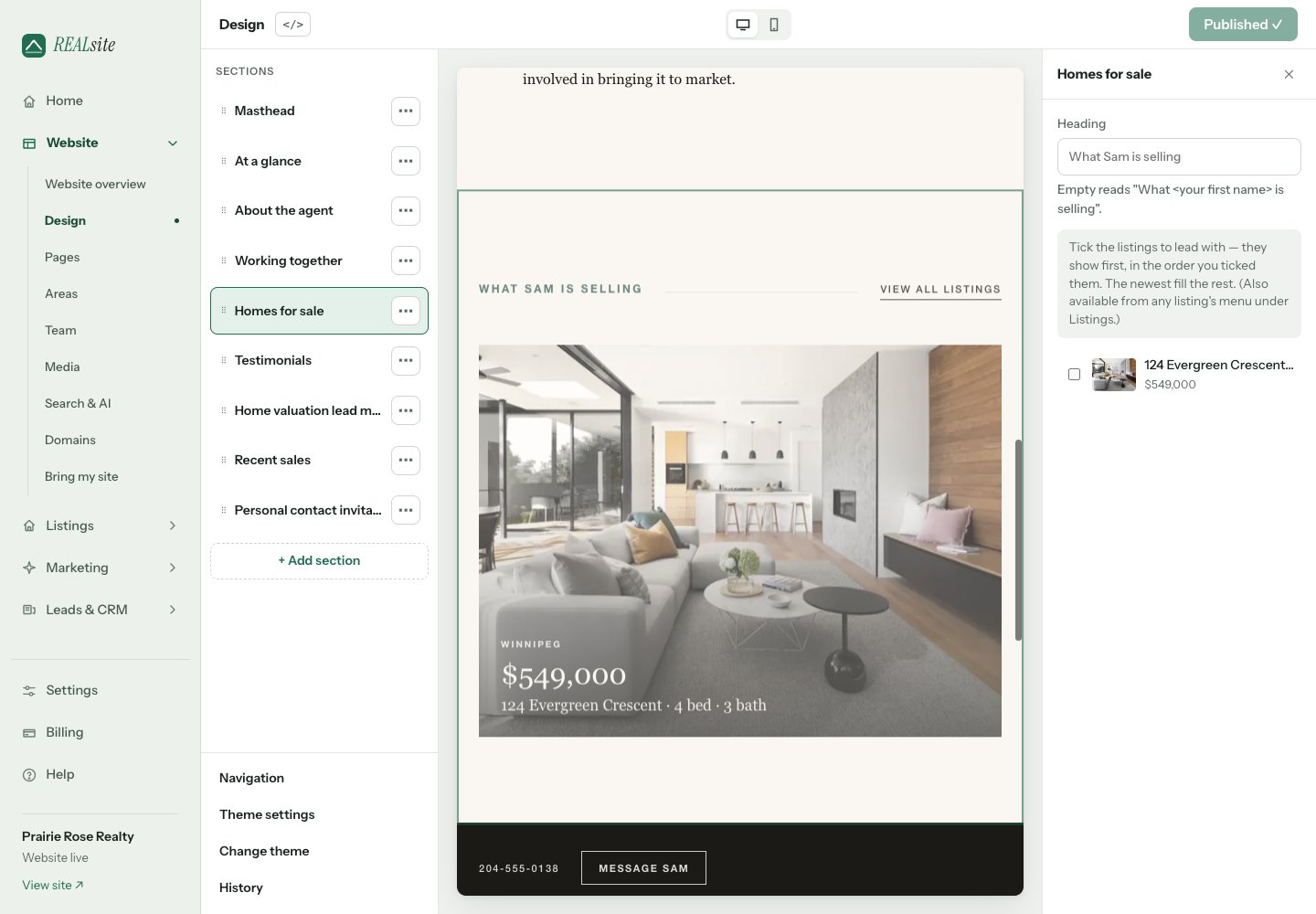 The preview on the right is the real storefront rendering your real Liquid
— what the owner sees is what visitors get.
## 3. Make it feel native
Steal the theme's own vocabulary. The wrapper classes above (`section`,
`shell`, `section-head`, `section-label`, `section-rule`, `button`) are
Northlight's — using the host theme's classes means your section inherits
its typography, spacing, and colour scheme with zero CSS of your own.
Add custom styles to `assets/theme.css` only when the vocabulary runs out.
## 4. Level up: blocks
Want the owner to add repeatable items — quotes, FAQs, stats? Declare
`blocks` in the schema and loop `section.blocks`. The platform's
Testimonials section is a complete working example — see
[Sections & schema](/docs/developers/sections#blocks-a-real-example).
## The loop you just learned
Code in **Design → Code** → schema becomes UI in **Design** → owner edits
settings → your Liquid renders them. That's the whole theme engine; every
section on every REALsite theme is this same loop.
This documentation is built and hosted on [Mintlify](https://mintlify.com), a developer documentation platform.
The preview on the right is the real storefront rendering your real Liquid
— what the owner sees is what visitors get.
## 3. Make it feel native
Steal the theme's own vocabulary. The wrapper classes above (`section`,
`shell`, `section-head`, `section-label`, `section-rule`, `button`) are
Northlight's — using the host theme's classes means your section inherits
its typography, spacing, and colour scheme with zero CSS of your own.
Add custom styles to `assets/theme.css` only when the vocabulary runs out.
## 4. Level up: blocks
Want the owner to add repeatable items — quotes, FAQs, stats? Declare
`blocks` in the schema and loop `section.blocks`. The platform's
Testimonials section is a complete working example — see
[Sections & schema](/docs/developers/sections#blocks-a-real-example).
## The loop you just learned
Code in **Design → Code** → schema becomes UI in **Design** → owner edits
settings → your Liquid renders them. That's the whole theme engine; every
section on every REALsite theme is this same loop.
This documentation is built and hosted on [Mintlify](https://mintlify.com), a developer documentation platform.