> ## Documentation Index
> Fetch the complete documentation index at: https://realsite.ca/docs/llms.txt
> Use this file to discover all available pages before exploring further.
# Leads and the CRM
> Every visitor can raise a hand — and every lead arrives knowing where it came from.
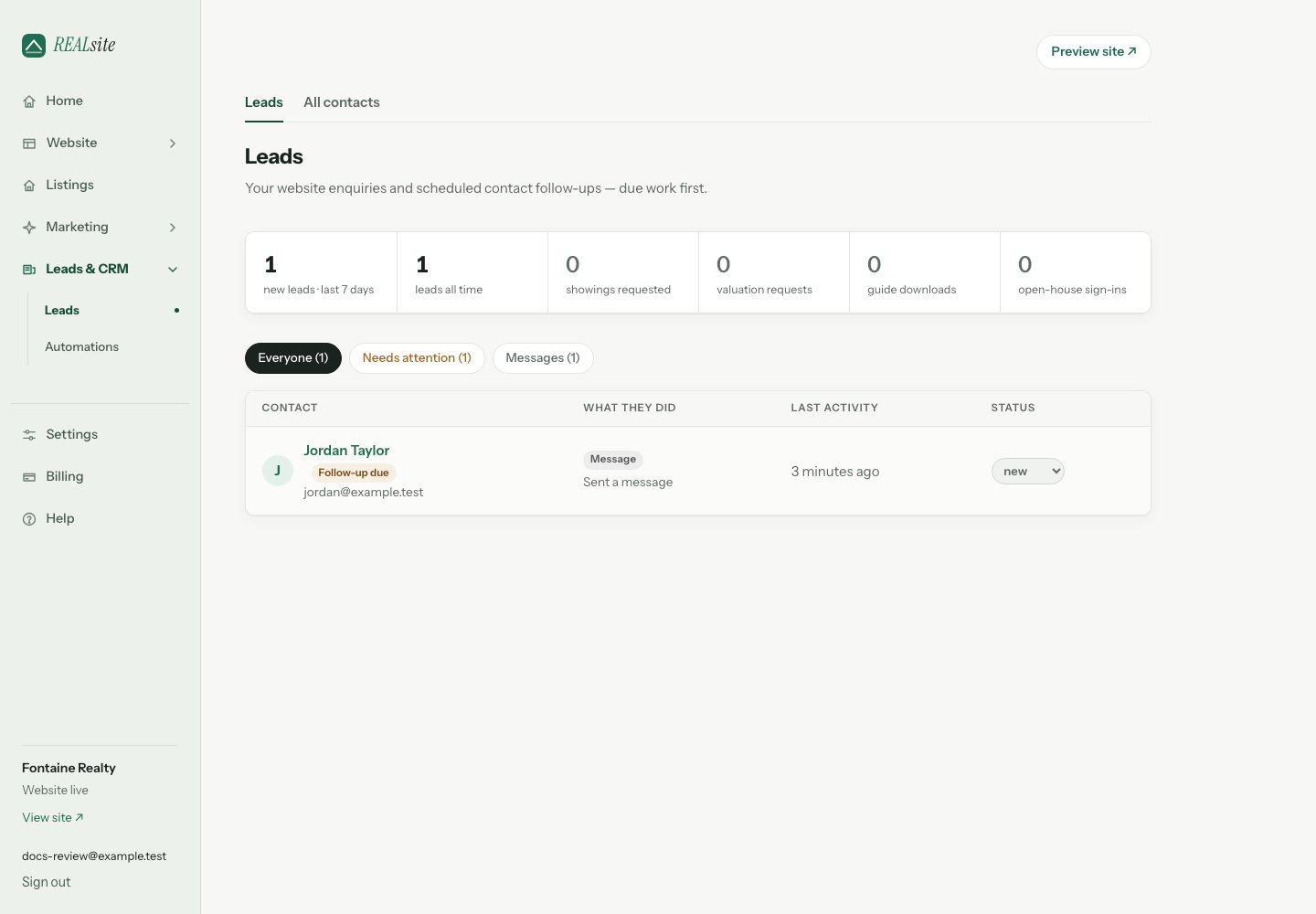 Every touchpoint on your site captures leads into the built-in CRM: home
valuations, sold-price asks, showing requests, contact messages, guide downloads, open-house
QR sign-ins. There's nothing to connect and nothing extra to pay for.
## Add a form to your website
When Leads is empty, choose **Add a website form** to open the form choices
in Design. Pick a section, personalize it, then preview and publish your
changes. Opening the choices does not add or publish a form.
For a dedicated campaign address, choose **Create a lead-generation page**
instead. Both routes send enquiries to the same CRM.
## What a lead knows about itself
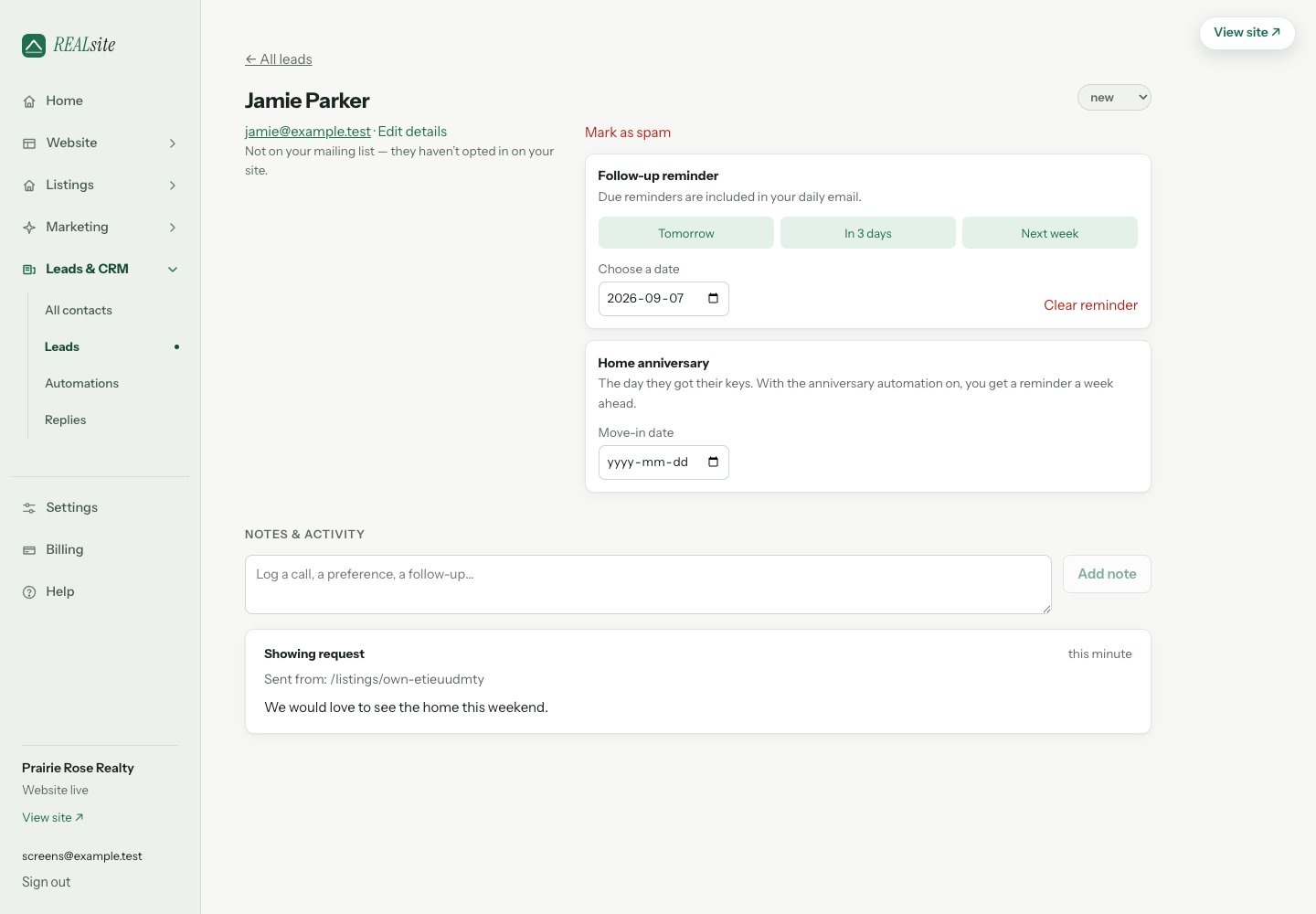
Open any lead and its timeline shows:
* **Which page raised it** — "Sent from: What is your Wolseley home worth?"
A lead from an ad's landing page says so, which is how you learn which
campaign is working.
* **The browsing trail, when available** — recorded visits linked to the
enquiry’s browser session, such as homes they viewed. It is not a complete
history across every browser or device.
Available pages open directly from the trail; a removed listing is clearly
marked as no longer available. You call the right person first, already
knowing what they care about.
* **How they found you** — direct, search, social, or sent by an AI
assistant.
## Working leads
Leads have a status (new through closed), notes for calls and preferences,
and repeat submissions from the same email stitch into one contact — a
person, not a pile of form fills.
Set a **Follow-up reminder** on any lead for tomorrow, three days from now,
next week, or a date you choose. At 8:00 a.m. in your site's own time zone
(set it under **Settings**), each teammate who receives notifications gets
one morning digest listing every reminder due or overdue, plus what the
[automations](/docs/help/automations) did overnight. Quiet days stay quiet; if
nothing is due, no digest is sent. Only a hot lead reaches you right away.
The inbox works your day for you: leads with a follow-up date due sort to
the top. **Needs attention** includes new enquiries immediately and contact
follow-ups due today or earlier, using your site's time zone. Home, Leads and
Contacts use the same definition; closed or spam contacts are excluded.
Their due reminders are also excluded from the morning digest. A contact's
marketing-email opt-out does not remove the reminder you set for yourself.
New enquiries and due reminders are labelled separately,
and heat dots mark who's hot (a valuation or showing request, heavy
browsing, or a newsletter click) so you call the right person first. Filter
by what they did — valuations, showings, open houses — or by where they
came from: each open house is its own sign-in sheet, each landing page its
own campaign.
## Leads and Contacts — two views of one person
**Leads** brings together people who raised a hand on your site and contacts
with scheduled follow-ups. Contacts without a website enquiry are labelled
**Contact follow-up**.
**Contacts** is your database: everyone on file, with their mailing status
at a glance — on your list, not opted in, or opted out. Choose **Add contact**
for someone you met offline: enter their email, with optional name and phone,
then open their record to add notes or a follow-up. Adding a contact does not
send an email or subscribe them to your mailing list.
Import your book of business there as a CSV (they get follow-ups, notes, and calls — but no
emails until they opt in on your site), and export everything any time.
It's your data.
The two views share one record. The moment a contact fills a form, they
appear in Leads — nothing to convert, nothing to copy.
## Consent, handled
Before you collect mailing-list consent, add your **office mailing address**
once in **Settings**. REALsite then adds a clear consent checkbox to your
public lead forms automatically, with your name, brokerage (when applicable),
contact details, and mailing address. The lead still reaches your CRM if the
visitor leaves the box unticked; they simply do not join your mailing list.
When someone does opt in, REALsite records when and where it happened, the
form they used, the exact wording they saw, and the sender details shown with
it. A later form left unticked never erases an earlier opt-in.
You can choose **Stop emailing** on a contact at any time. For their protection,
you cannot switch marketing email back on from the admin: the contact must opt
in again through one of your public forms. If they had previously unsubscribed,
REALsite sends a confirmation link to that address before adding it back. The
agent does not have to manage this step. Imported contacts can still have notes,
calls, and follow-ups, but do not receive marketing email until they opt in.
**Mark as spam** holds the contact's enquiries and excludes them from marketing
email. Their notes and follow-ups stay on the record. **Not spam** removes that
flag; any opt-out or delivery block still applies.
These controls support good CASL practices, but they do not replace advice
about your own business, existing contact lists, or specific campaigns. Have
your final process and wording reviewed by a qualified Canadian legal adviser.
## The numbers
**Analytics** shows leads raised alongside site views, which pages raise
them, and when AI assistants send you visitors — first-party only, no third-party trackers,
nothing to configure.
Every touchpoint on your site captures leads into the built-in CRM: home
valuations, sold-price asks, showing requests, contact messages, guide downloads, open-house
QR sign-ins. There's nothing to connect and nothing extra to pay for.
## Add a form to your website
When Leads is empty, choose **Add a website form** to open the form choices
in Design. Pick a section, personalize it, then preview and publish your
changes. Opening the choices does not add or publish a form.
For a dedicated campaign address, choose **Create a lead-generation page**
instead. Both routes send enquiries to the same CRM.
## What a lead knows about itself
Open any lead and its timeline shows:
* **Which page raised it** — "Sent from: What is your Wolseley home worth?"
A lead from an ad's landing page says so, which is how you learn which
campaign is working.
* **The browsing trail, when available** — recorded visits linked to the
enquiry’s browser session, such as homes they viewed. It is not a complete
history across every browser or device.
Available pages open directly from the trail; a removed listing is clearly
marked as no longer available. You call the right person first, already
knowing what they care about.
* **How they found you** — direct, search, social, or sent by an AI
assistant.
## Working leads
Leads have a status (new through closed), notes for calls and preferences,
and repeat submissions from the same email stitch into one contact — a
person, not a pile of form fills.
Set a **Follow-up reminder** on any lead for tomorrow, three days from now,
next week, or a date you choose. At 8:00 a.m. in your site's own time zone
(set it under **Settings**), each teammate who receives notifications gets
one morning digest listing every reminder due or overdue, plus what the
[automations](/docs/help/automations) did overnight. Quiet days stay quiet; if
nothing is due, no digest is sent. Only a hot lead reaches you right away.
The inbox works your day for you: leads with a follow-up date due sort to
the top. **Needs attention** includes new enquiries immediately and contact
follow-ups due today or earlier, using your site's time zone. Home, Leads and
Contacts use the same definition; closed or spam contacts are excluded.
Their due reminders are also excluded from the morning digest. A contact's
marketing-email opt-out does not remove the reminder you set for yourself.
New enquiries and due reminders are labelled separately,
and heat dots mark who's hot (a valuation or showing request, heavy
browsing, or a newsletter click) so you call the right person first. Filter
by what they did — valuations, showings, open houses — or by where they
came from: each open house is its own sign-in sheet, each landing page its
own campaign.
## Leads and Contacts — two views of one person
**Leads** brings together people who raised a hand on your site and contacts
with scheduled follow-ups. Contacts without a website enquiry are labelled
**Contact follow-up**.
**Contacts** is your database: everyone on file, with their mailing status
at a glance — on your list, not opted in, or opted out. Choose **Add contact**
for someone you met offline: enter their email, with optional name and phone,
then open their record to add notes or a follow-up. Adding a contact does not
send an email or subscribe them to your mailing list.
Import your book of business there as a CSV (they get follow-ups, notes, and calls — but no
emails until they opt in on your site), and export everything any time.
It's your data.
The two views share one record. The moment a contact fills a form, they
appear in Leads — nothing to convert, nothing to copy.
## Consent, handled
Before you collect mailing-list consent, add your **office mailing address**
once in **Settings**. REALsite then adds a clear consent checkbox to your
public lead forms automatically, with your name, brokerage (when applicable),
contact details, and mailing address. The lead still reaches your CRM if the
visitor leaves the box unticked; they simply do not join your mailing list.
When someone does opt in, REALsite records when and where it happened, the
form they used, the exact wording they saw, and the sender details shown with
it. A later form left unticked never erases an earlier opt-in.
You can choose **Stop emailing** on a contact at any time. For their protection,
you cannot switch marketing email back on from the admin: the contact must opt
in again through one of your public forms. If they had previously unsubscribed,
REALsite sends a confirmation link to that address before adding it back. The
agent does not have to manage this step. Imported contacts can still have notes,
calls, and follow-ups, but do not receive marketing email until they opt in.
**Mark as spam** holds the contact's enquiries and excludes them from marketing
email. Their notes and follow-ups stay on the record. **Not spam** removes that
flag; any opt-out or delivery block still applies.
These controls support good CASL practices, but they do not replace advice
about your own business, existing contact lists, or specific campaigns. Have
your final process and wording reviewed by a qualified Canadian legal adviser.
## The numbers
**Analytics** shows leads raised alongside site views, which pages raise
them, and when AI assistants send you visitors — first-party only, no third-party trackers,
nothing to configure.
 This documentation is built and hosted on [Mintlify](https://mintlify.com), a developer documentation platform.