> ## Documentation Index
> Fetch the complete documentation index at: https://realsite.ca/docs/llms.txt
> Use this file to discover all available pages before exploring further.
# Pages
> Buyer guides, community pages, anything with its own address — built from sections.
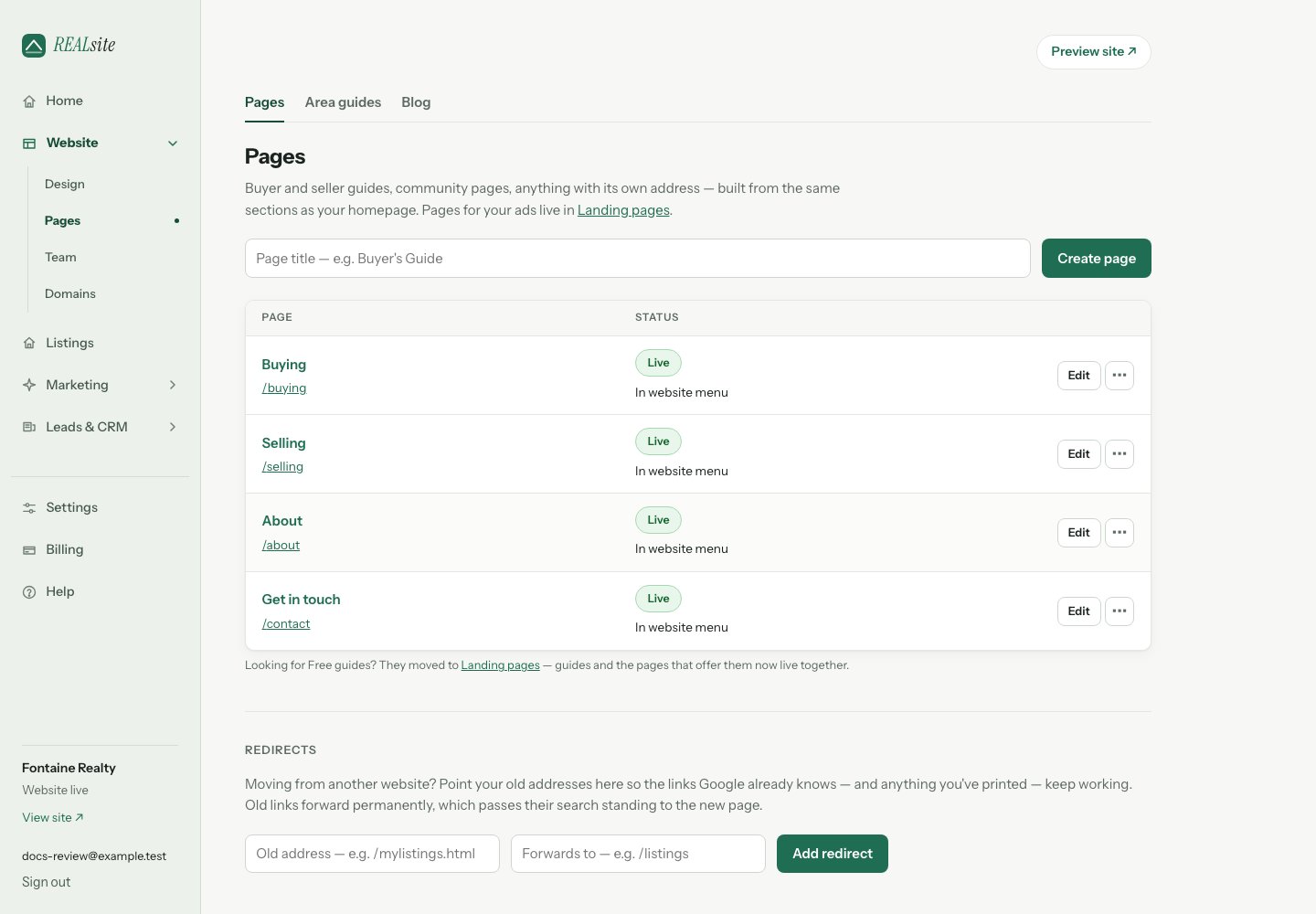 Open **Website → Pages** for standalone pages: a Buyer's Guide, a relocation
page, anything with its own address. Focused pages for an enquiry or guide
download live under [Marketing → Lead generation](/docs/help/landing-pages).
## Creating and editing
Create a page with a title — it arrives as a draft at `/its-title` and opens
in **Design**. Choose **Start writing** to add your first text section, or
**+ Add section** to choose from a few useful starting points. You can search
or **Browse all sections** for the complete library. Build your page
from the same sections as your homepage: text, valuation forms, featured
listings, mortgage calculators and guides. **Working together** adds editable
service or process steps; **Personal contact invitation** adds a message and
a button that opens your contact form.
Use **Preview on site** in the page's action menu to review it privately.
Choose **Publish** on its row when it is ready, or **Publish page** in Design
for a page that is still a draft. Publishing section changes and saving a
page's publication setting are separate from your whole website's visibility.
After publishing, choose **Add to menu** in Pages or **Add to website menu**
in Design so visitors can find it. Existing links stay in place. To reorder
or remove links, open **Design → Navigation**. Menu placement is optional;
you can also share a page's address directly. Unpublishing or deleting a page
removes its menu link so visitors are not sent to an unavailable page.
To unpublish a page, open its **More actions** menu and choose **Unpublish**.
## Check that visitors can open it
The status in Pages tells you the next step:
* **Draft** — the page is not available to visitors.
* **Saved for launch** — the page is published, but your website is still
coming soon. Choose **Review site visibility**, select **Live** in Settings
and save.
* **Not public** — choose **Review billing** to check the account's access.
* **Live** — the page is available under its public address. Open that address
in a private browser window to check the visitor experience before sharing.
An active, verified domain assigned directly to a page can serve it separately
while the main website is coming soon. See [Landing pages](/docs/help/landing-pages#published-and-ready-to-share).
## How a page appears in Google
Every page has a **Search result** editor — a sentence or two describing
the page, shown with an example search preview. Write a useful, accurate
description; search engines may choose different text. Adding a description
does not guarantee a ranking or a click.
## Templates
If your theme offers alternate page templates, choose **More actions → Page
layout**. **Standard page** suits most pages. A landing-page layout moves the
page into **Marketing → Lead generation** after you confirm; its address, content
and publication status stay the same. Custom layouts remain available for
[developers](/docs/developers/templates).
This documentation is built and hosted on [Mintlify](https://mintlify.com), a developer documentation platform.
Open **Website → Pages** for standalone pages: a Buyer's Guide, a relocation
page, anything with its own address. Focused pages for an enquiry or guide
download live under [Marketing → Lead generation](/docs/help/landing-pages).
## Creating and editing
Create a page with a title — it arrives as a draft at `/its-title` and opens
in **Design**. Choose **Start writing** to add your first text section, or
**+ Add section** to choose from a few useful starting points. You can search
or **Browse all sections** for the complete library. Build your page
from the same sections as your homepage: text, valuation forms, featured
listings, mortgage calculators and guides. **Working together** adds editable
service or process steps; **Personal contact invitation** adds a message and
a button that opens your contact form.
Use **Preview on site** in the page's action menu to review it privately.
Choose **Publish** on its row when it is ready, or **Publish page** in Design
for a page that is still a draft. Publishing section changes and saving a
page's publication setting are separate from your whole website's visibility.
After publishing, choose **Add to menu** in Pages or **Add to website menu**
in Design so visitors can find it. Existing links stay in place. To reorder
or remove links, open **Design → Navigation**. Menu placement is optional;
you can also share a page's address directly. Unpublishing or deleting a page
removes its menu link so visitors are not sent to an unavailable page.
To unpublish a page, open its **More actions** menu and choose **Unpublish**.
## Check that visitors can open it
The status in Pages tells you the next step:
* **Draft** — the page is not available to visitors.
* **Saved for launch** — the page is published, but your website is still
coming soon. Choose **Review site visibility**, select **Live** in Settings
and save.
* **Not public** — choose **Review billing** to check the account's access.
* **Live** — the page is available under its public address. Open that address
in a private browser window to check the visitor experience before sharing.
An active, verified domain assigned directly to a page can serve it separately
while the main website is coming soon. See [Landing pages](/docs/help/landing-pages#published-and-ready-to-share).
## How a page appears in Google
Every page has a **Search result** editor — a sentence or two describing
the page, shown with an example search preview. Write a useful, accurate
description; search engines may choose different text. Adding a description
does not guarantee a ranking or a click.
## Templates
If your theme offers alternate page templates, choose **More actions → Page
layout**. **Standard page** suits most pages. A landing-page layout moves the
page into **Marketing → Lead generation** after you confirm; its address, content
and publication status stay the same. Custom layouts remain available for
[developers](/docs/developers/templates).
This documentation is built and hosted on [Mintlify](https://mintlify.com), a developer documentation platform.