> ## Documentation Index
> Fetch the complete documentation index at: https://realsite.ca/docs/llms.txt
> Use this file to discover all available pages before exploring further.
# Website themes and collections
> Choose a website look with matching marketing designs, personalize it and understand what changes when you switch.
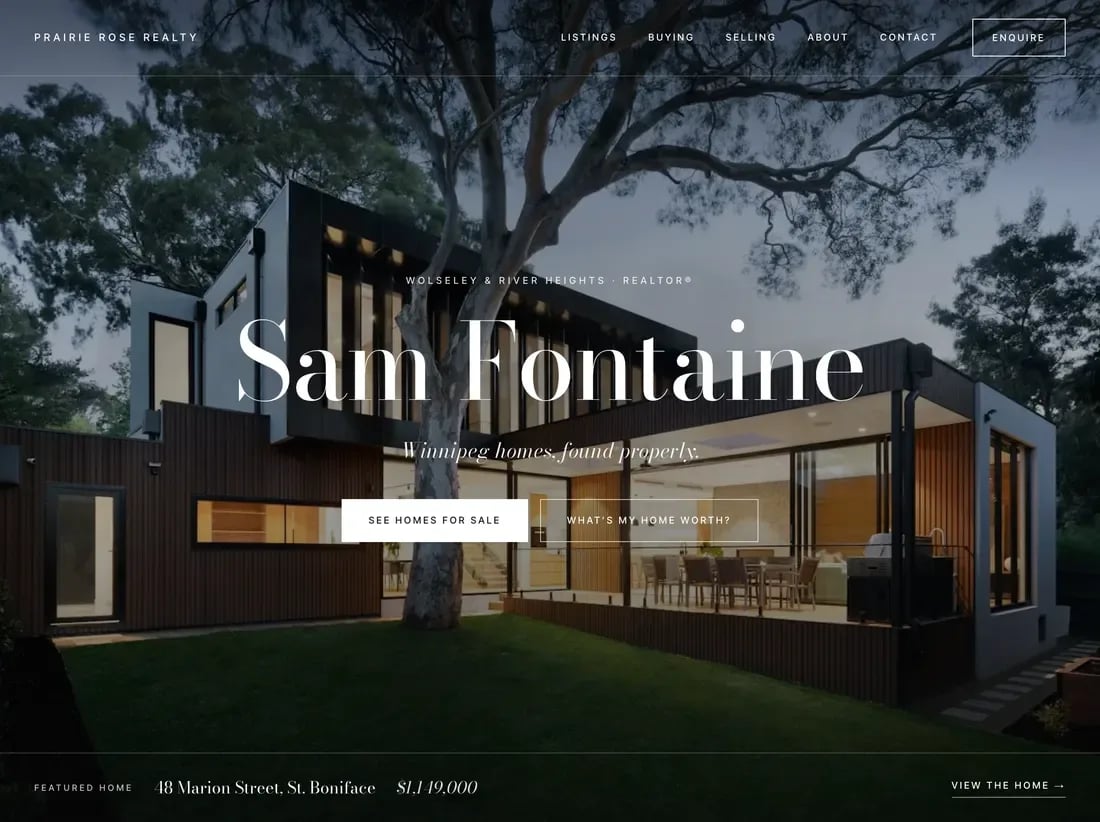 REALsite includes five themes, each with four curated colour schemes. Every
homepage opens on a photograph of a home, with your name and statement set
the way that theme sets them. Your portrait and story follow in **About**.
Each theme also starts a coordinated collection for your social posts, seller
presentations, Reels, newsletters and [print marketing](/docs/help/print-marketing).
[Compare the collections](https://realsite.ca/themes) to see the website and
actual sample materials together. In your account, choose your website look
under **Website → Design → Change theme**. Compare the sample website previews,
then choose **Try it on** to see your own content in that theme. Browsing previews
does not change your saved theme; switching still asks for confirmation.
| Theme | Homepage character |
| - | - |
| **Northlight** | A local journal: your name as the masthead and a featured home on the cover |
| **Meridian** | A bold poster: your name in large capitals on your colour, beside a home |
| **Patina** | A classic, centred welcome: a home matted like a print, with your name beneath it |
| **Sunroom** | A warm, personal welcome: a home through an arched window, with your name beside it |
| **Laurier** | Your name across a full-screen photograph, then an editorial portfolio of your homes |
## Your homepage is you
The opening uses your existing profile: your name, tagline, About text and
contact details. Each theme arranges that content in its own way. You do not
need a second biography or a separate set of listings for each theme.
The opening is the **Cover** section in Design. Its photograph is chosen
under **Design → Theme settings → Cover section → Homepage photograph**:
* **Automatic** uses your featured listing, or your highest-priced listing
with a photo. That home is then left out of the listings below so it never
appears twice.
* A named scene uses one of the included house photographs.
* **Your own cover photo** uses an image you add.
* **My portrait** puts your headshot in the opening instead of a home.
Sites that already use the **Masthead** or **Letter** opening keep it after
switching themes; both use the same profile, and a missing portrait leaves a
text introduction rather than an empty frame.
The rest of the homepage introduces you, shows selected homes, shares
client accounts and invites a conversation. The order varies by theme and
can be changed in Design.
The facts strip uses information on your site, or figures you enter. Fill
**Licensed since (year)** under **Design → Theme settings → About you** to
supply your experience. **Testimonials** stays hidden until it has quote
blocks; add your clients' own words instead of leaving example copy.
## Edit your homepage
Open **Website → Design** and choose **Cover**, **Masthead**, **Letter** or your
existing hero section. If you have a tagline, its **Tagline** field shows the same words
as Settings. Edit it here and use **Save** to update it across your website.
You do not need to publish a section draft for this shared profile change.
If your tagline is empty, the section shows its own text field instead. That
text follows the usual draft and **Publish** steps. Clearing a tagline returns
to the section's saved text; switching themes keeps both values.
REALsite includes five themes, each with four curated colour schemes. Every
homepage opens on a photograph of a home, with your name and statement set
the way that theme sets them. Your portrait and story follow in **About**.
Each theme also starts a coordinated collection for your social posts, seller
presentations, Reels, newsletters and [print marketing](/docs/help/print-marketing).
[Compare the collections](https://realsite.ca/themes) to see the website and
actual sample materials together. In your account, choose your website look
under **Website → Design → Change theme**. Compare the sample website previews,
then choose **Try it on** to see your own content in that theme. Browsing previews
does not change your saved theme; switching still asks for confirmation.
| Theme | Homepage character |
| - | - |
| **Northlight** | A local journal: your name as the masthead and a featured home on the cover |
| **Meridian** | A bold poster: your name in large capitals on your colour, beside a home |
| **Patina** | A classic, centred welcome: a home matted like a print, with your name beneath it |
| **Sunroom** | A warm, personal welcome: a home through an arched window, with your name beside it |
| **Laurier** | Your name across a full-screen photograph, then an editorial portfolio of your homes |
## Your homepage is you
The opening uses your existing profile: your name, tagline, About text and
contact details. Each theme arranges that content in its own way. You do not
need a second biography or a separate set of listings for each theme.
The opening is the **Cover** section in Design. Its photograph is chosen
under **Design → Theme settings → Cover section → Homepage photograph**:
* **Automatic** uses your featured listing, or your highest-priced listing
with a photo. That home is then left out of the listings below so it never
appears twice.
* A named scene uses one of the included house photographs.
* **Your own cover photo** uses an image you add.
* **My portrait** puts your headshot in the opening instead of a home.
Sites that already use the **Masthead** or **Letter** opening keep it after
switching themes; both use the same profile, and a missing portrait leaves a
text introduction rather than an empty frame.
The rest of the homepage introduces you, shows selected homes, shares
client accounts and invites a conversation. The order varies by theme and
can be changed in Design.
The facts strip uses information on your site, or figures you enter. Fill
**Licensed since (year)** under **Design → Theme settings → About you** to
supply your experience. **Testimonials** stays hidden until it has quote
blocks; add your clients' own words instead of leaving example copy.
## Edit your homepage
Open **Website → Design** and choose **Cover**, **Masthead**, **Letter** or your
existing hero section. If you have a tagline, its **Tagline** field shows the same words
as Settings. Edit it here and use **Save** to update it across your website.
You do not need to publish a section draft for this shared profile change.
If your tagline is empty, the section shows its own text field instead. That
text follows the usual draft and **Publish** steps. Clearing a tagline returns
to the section's saved text; switching themes keeps both values.
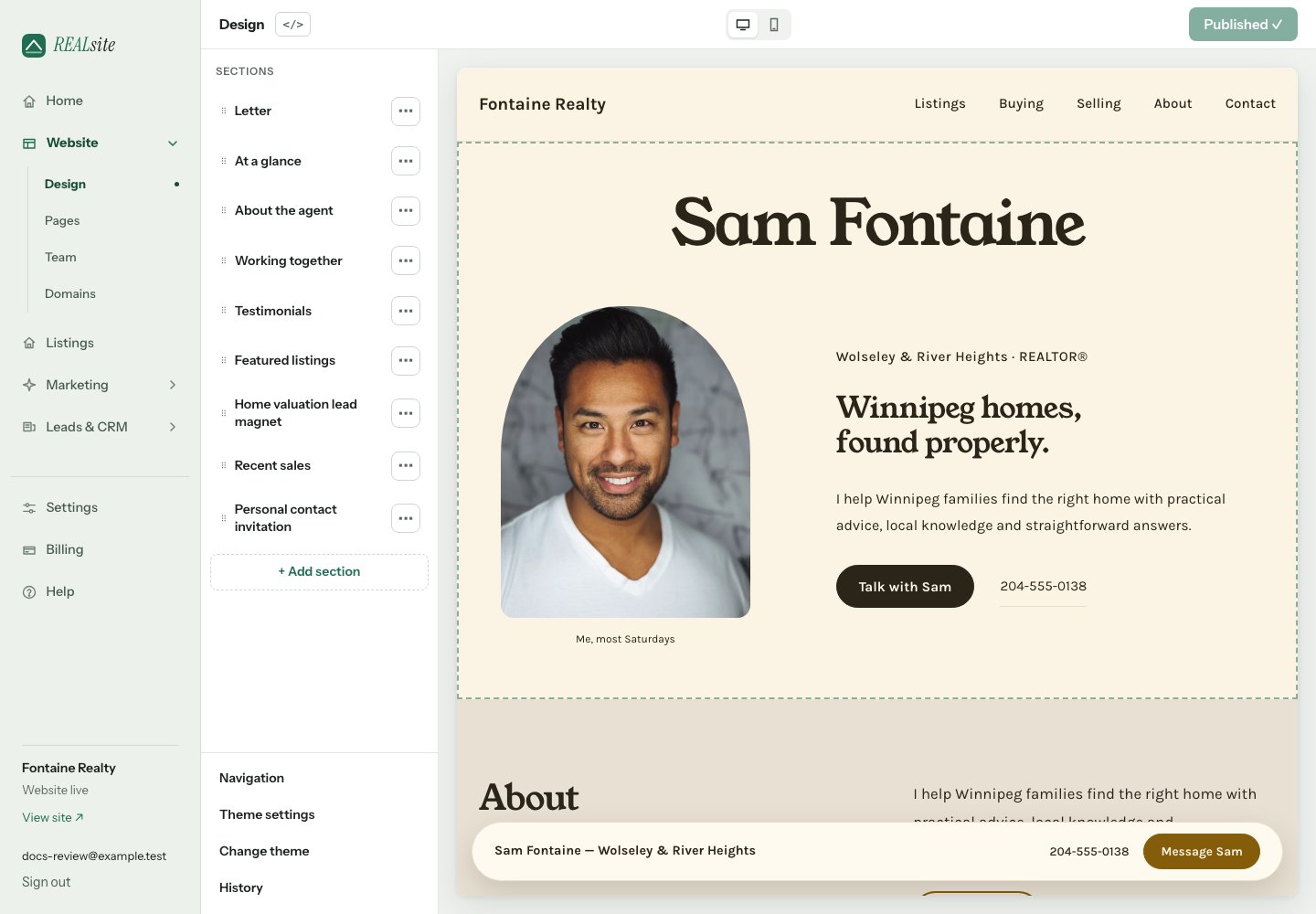 1. Open **Design** and select a section in the left-hand list to edit its
settings. Use **+ Add section** to see suggested sections with descriptions.
Search by name or choose **Browse all sections** for the complete library.
2. Add **Working together** to explain your services or process. Edit its
heading and introduction, then add or edit the **Service or step** items.
Use **Move up**, **Move down** or **Remove item** on an item's menu.
3. Add **Personal contact invitation** for a closing heading, short message
and button label. Its button opens your site's contact form.
4. Preview the whole page, including the phone layout, then choose
**Publish** to make section changes public. Section edits are saved as
drafts first. Changes to shared profile text, such as your name or About
text, update that profile rather than creating a separate section draft.
On a phone, use **Edit** for the section list and settings, then **Preview**
to see the page at your phone's width. Preview saves pending section edits
as a draft; it does not publish them. Tap a section in the preview to open
its settings, or tap editable text to type directly. Use **Edit** to return
to the controls. Save or discard any pending theme or navigation changes
before opening Preview; those settings are separate from the section draft.
An existing homepage keeps its saved section order when you switch themes.
New default sections are not inserted into that arrangement automatically;
use **+ Add section** to add Working together or Personal contact invitation
where you want them.
Want an older homepage to open on a home? In any theme, add the **Cover**
section in Design and move it to the opening position. It uses a listing
photo when available, or a house photograph from the supplied set. You can
choose or upload an image under **Theme settings → Cover section**.
## Your website menu
Open **Design → Navigation** to edit the links visitors see, including the
default links on a new website. Drag links or use the up and down buttons
to reorder them. You can keep up to ten links, or remove all links and save
an empty menu. Changes take effect when you choose **Save** in the save bar.
Publish a page or area guide before choosing it as a destination. Unpublishing
or deleting it removes its menu link. Menu changes are included in **History**.
## Changing is never a rebuild
In your website preview, use the theme menu to try a look across your pages without
saving it. Choose **Use \[theme name]** to open Design with that collection
first, then **Switch to \[theme name]** and confirm. **Discard** returns the
preview to your saved theme. The Design editor always shows your saved theme.
Switch the theme or colour scheme in **Design**. Your listings, leads,
pages, photos and saved section content remain on the same site. The
homepage refresh changes their presentation; listing search and individual
listing pages keep their existing functionality.
A restore point is saved before a theme switch and when you publish or save
theme settings. Use **History** to return to a saved design. Preview before
switching, especially if you or a developer have changed the theme's code:
a custom section needs a matching section file in the destination theme to
render. History restores saved designs, not unsaved edits.
## Try before you switch
Open the preview (**Preview site** above the admin content or **View site**
in the menu) and use the **Theme** menu in
the bar at the bottom. Pick one and see your own site in that theme on every
page you visit, in a private preview. **Use Laurier** opens Design, where you
can review and confirm the switch. **Discard** returns to the saved theme.
Trying a theme does not change what visitors see.
## Portrait and photo treatment
Under **Design → Theme settings → Photography**, **Photo treatment** lets
you choose **Warm gallery** for the theme's photographic treatment or
**Natural** to show photos without that colour treatment. This changes
presentation; your uploaded original remains the same.
## Colour schemes are complete sets
Each scheme is a tested combination — ground, ink, accent — so you can pick
freely and nothing can clash. A hand-picked accent colour (in theme
settings) always wins over the scheme's default if you want one thing yours.
## A coordinated marketing collection
Each look includes matching starting designs in Marketing: social posts,
carousels, Stories, Reels, seller presentations, business cards, postcards,
mail-drop flyers and feature sheets. Property websites follow the site's current
identity. New newsletters capture the collection's colours and signature.
After you switch themes or colour schemes, **every new marketing piece starts
with the current collection automatically**. You do not need to apply the new
look separately to each new project. Opening an existing saved piece resumes
that piece; it does not create a new one.
[Browse the complete collections](https://realsite.ca/themes), including actual
sample print PDFs. Saved marketing projects, social posts and newsletter drafts
keep their collection when your website changes. Social posts, campaigns and
print projects offer **Use my website’s current collection** in their design
controls. In a seller presentation, **Photos & style** identifies its saved
collection. When the website collection differs, choose **Use \[collection name]
collection** to apply it to this draft, then preview and save. Create a new
newsletter to use the new collection.
[Create your first matching materials](/docs/help/marketing-studio).
This documentation is built and hosted on [Mintlify](https://mintlify.com), a developer documentation platform.
1. Open **Design** and select a section in the left-hand list to edit its
settings. Use **+ Add section** to see suggested sections with descriptions.
Search by name or choose **Browse all sections** for the complete library.
2. Add **Working together** to explain your services or process. Edit its
heading and introduction, then add or edit the **Service or step** items.
Use **Move up**, **Move down** or **Remove item** on an item's menu.
3. Add **Personal contact invitation** for a closing heading, short message
and button label. Its button opens your site's contact form.
4. Preview the whole page, including the phone layout, then choose
**Publish** to make section changes public. Section edits are saved as
drafts first. Changes to shared profile text, such as your name or About
text, update that profile rather than creating a separate section draft.
On a phone, use **Edit** for the section list and settings, then **Preview**
to see the page at your phone's width. Preview saves pending section edits
as a draft; it does not publish them. Tap a section in the preview to open
its settings, or tap editable text to type directly. Use **Edit** to return
to the controls. Save or discard any pending theme or navigation changes
before opening Preview; those settings are separate from the section draft.
An existing homepage keeps its saved section order when you switch themes.
New default sections are not inserted into that arrangement automatically;
use **+ Add section** to add Working together or Personal contact invitation
where you want them.
Want an older homepage to open on a home? In any theme, add the **Cover**
section in Design and move it to the opening position. It uses a listing
photo when available, or a house photograph from the supplied set. You can
choose or upload an image under **Theme settings → Cover section**.
## Your website menu
Open **Design → Navigation** to edit the links visitors see, including the
default links on a new website. Drag links or use the up and down buttons
to reorder them. You can keep up to ten links, or remove all links and save
an empty menu. Changes take effect when you choose **Save** in the save bar.
Publish a page or area guide before choosing it as a destination. Unpublishing
or deleting it removes its menu link. Menu changes are included in **History**.
## Changing is never a rebuild
In your website preview, use the theme menu to try a look across your pages without
saving it. Choose **Use \[theme name]** to open Design with that collection
first, then **Switch to \[theme name]** and confirm. **Discard** returns the
preview to your saved theme. The Design editor always shows your saved theme.
Switch the theme or colour scheme in **Design**. Your listings, leads,
pages, photos and saved section content remain on the same site. The
homepage refresh changes their presentation; listing search and individual
listing pages keep their existing functionality.
A restore point is saved before a theme switch and when you publish or save
theme settings. Use **History** to return to a saved design. Preview before
switching, especially if you or a developer have changed the theme's code:
a custom section needs a matching section file in the destination theme to
render. History restores saved designs, not unsaved edits.
## Try before you switch
Open the preview (**Preview site** above the admin content or **View site**
in the menu) and use the **Theme** menu in
the bar at the bottom. Pick one and see your own site in that theme on every
page you visit, in a private preview. **Use Laurier** opens Design, where you
can review and confirm the switch. **Discard** returns to the saved theme.
Trying a theme does not change what visitors see.
## Portrait and photo treatment
Under **Design → Theme settings → Photography**, **Photo treatment** lets
you choose **Warm gallery** for the theme's photographic treatment or
**Natural** to show photos without that colour treatment. This changes
presentation; your uploaded original remains the same.
## Colour schemes are complete sets
Each scheme is a tested combination — ground, ink, accent — so you can pick
freely and nothing can clash. A hand-picked accent colour (in theme
settings) always wins over the scheme's default if you want one thing yours.
## A coordinated marketing collection
Each look includes matching starting designs in Marketing: social posts,
carousels, Stories, Reels, seller presentations, business cards, postcards,
mail-drop flyers and feature sheets. Property websites follow the site's current
identity. New newsletters capture the collection's colours and signature.
After you switch themes or colour schemes, **every new marketing piece starts
with the current collection automatically**. You do not need to apply the new
look separately to each new project. Opening an existing saved piece resumes
that piece; it does not create a new one.
[Browse the complete collections](https://realsite.ca/themes), including actual
sample print PDFs. Saved marketing projects, social posts and newsletter drafts
keep their collection when your website changes. Social posts, campaigns and
print projects offer **Use my website’s current collection** in their design
controls. In a seller presentation, **Photos & style** identifies its saved
collection. When the website collection differs, choose **Use \[collection name]
collection** to apply it to this draft, then preview and save. Create a new
newsletter to use the new collection.
[Create your first matching materials](/docs/help/marketing-studio).
This documentation is built and hosted on [Mintlify](https://mintlify.com), a developer documentation platform.