> ## Documentation Index
> Fetch the complete documentation index at: https://realsite.ca/docs/llms.txt
> Use this file to discover all available pages before exploring further.
# Walkthrough: your first presentation and campaign
> Prepare a seller presentation, then turn a listing's photos into social files you can share.
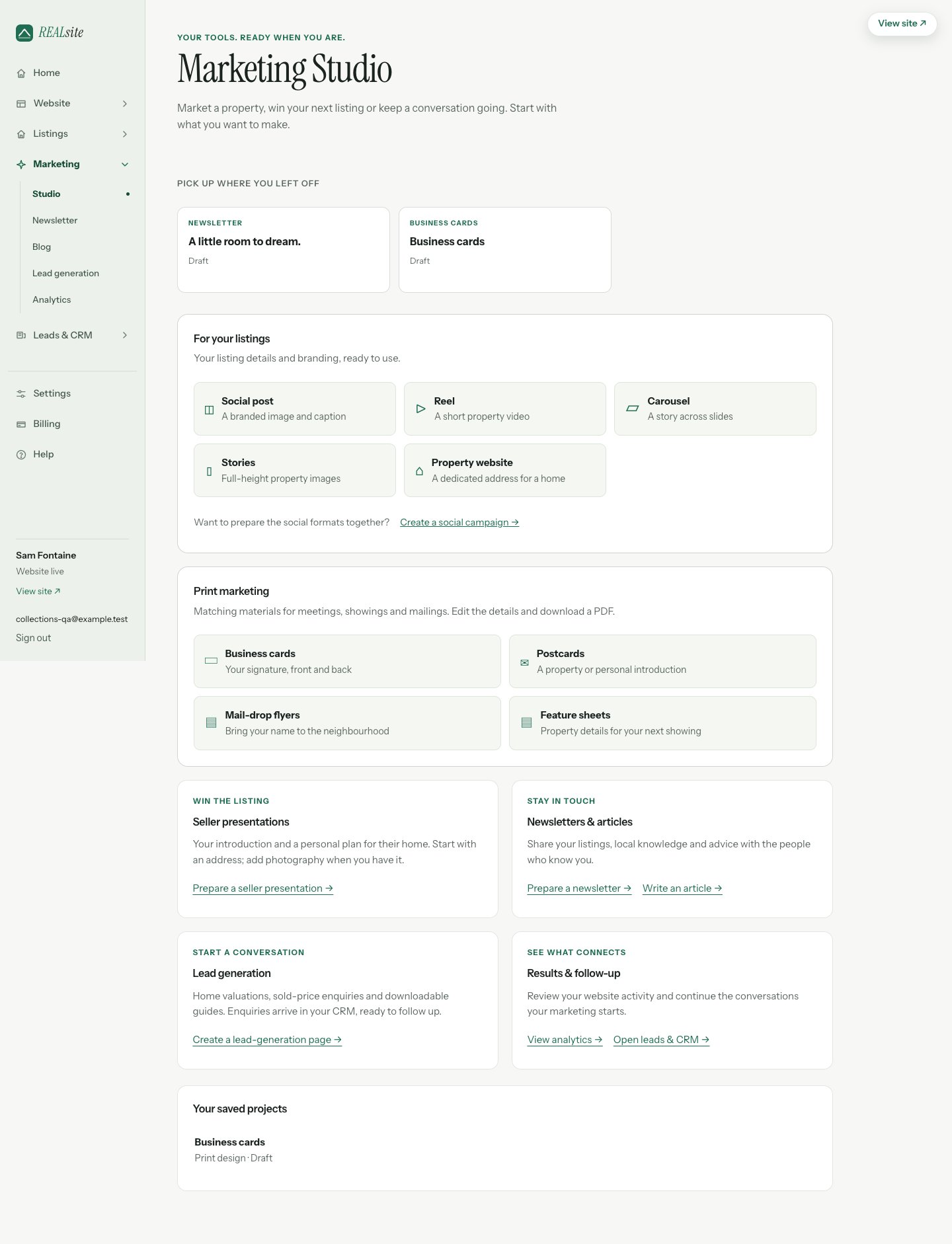
Open **Marketing → Overview**. Choose **Prepare a seller presentation** for a prospective
seller or **Create a social campaign** for a home already in Listings. Each becomes its own saved project.
 ## Before the listing appointment
You can make a seller presentation before connecting a feed. Have the property
address and your proposed marketing approach ready. Photos can come later; add
at least one before enabling a private presentation link.
Choose **Prepare a seller presentation**, enter the address and create the project.
In **Your presentation**, edit your introduction and approach. The testimonial,
timeline and signature controls are available when you need them. Under
**Your marketing timeline**, tailor the four starting steps—Prepare,
Introduce, Connect and Move forward—to this home. They describe your
proposed approach; they do not schedule a campaign.
Check your name, brokerage and contact details. Add a genuine testimonial
only if you have permission to use it; leaving it blank is fine.
Open **Photos & style** and upload up to eight photos, no more than 10 MB
each. Select and order the frames, then add short captions. Choose
the collection saved with your presentation for matching designs, or
Editorial, Modern or Warm for another treatment. **Show the whole photo** preserves the full
image; **Fill the frame** crops it to fit. Save your changes.
Open **Preview & share** and check the saved presentation on desktop and
phone. The collection layout shows proposed social and feature-sheet designs
using your supplied details. Check that they describe what you intend to offer.
For your collection design, choose **Prepare presentation PDF**, then
**Download presentation PDF** when it is ready. The Editorial, Modern and
Warm styles use **Open full preview → Print / Save PDF** instead; enable
background graphics in the print dialogue.
To share online, choose **Enable private link**, copy it and share it
yourself. Anyone with that link can view it. **Disable link** withdraws
access; saving an edit also withdraws it until you enable a new link.
REALsite sends no email from this workflow. A PDF is a separate downloaded
copy; disabling a link cannot withdraw a file someone already saved.
## When you have a listing to share
Use a home already available for marketing in **Listings**, with its photos
uploaded or downloaded from your authorized feed. You can also start there
with **… → Create Reel + carousel**.
Choose a format or **Create a social campaign** from Marketing. Select the
listing and open its saved campaign, or create a new variation. If the listing
needs details, finish and save them, then return to the selected task.
Review the address, property details, social caption and agent signature.
These are saved project copies. When source details change, review which
current fields to apply; your custom writing and design remain yours.
In **Photos & style**, choose up to eight photos. Use the arrows to order
them and give each frame a short caption. Keep the starting style or open
**Customize design** to adjust layout, colours, typography, framing and Reel
timing. On a phone, switch between **Customize design** and **Preview** to
check each adjustment. Save in the changes bar, then open **Reel & downloads → Create Reel + carousel + Stories**.
You can leave the page while the exports are prepared. Find the campaign
again in Home or Marketing’s recent work.
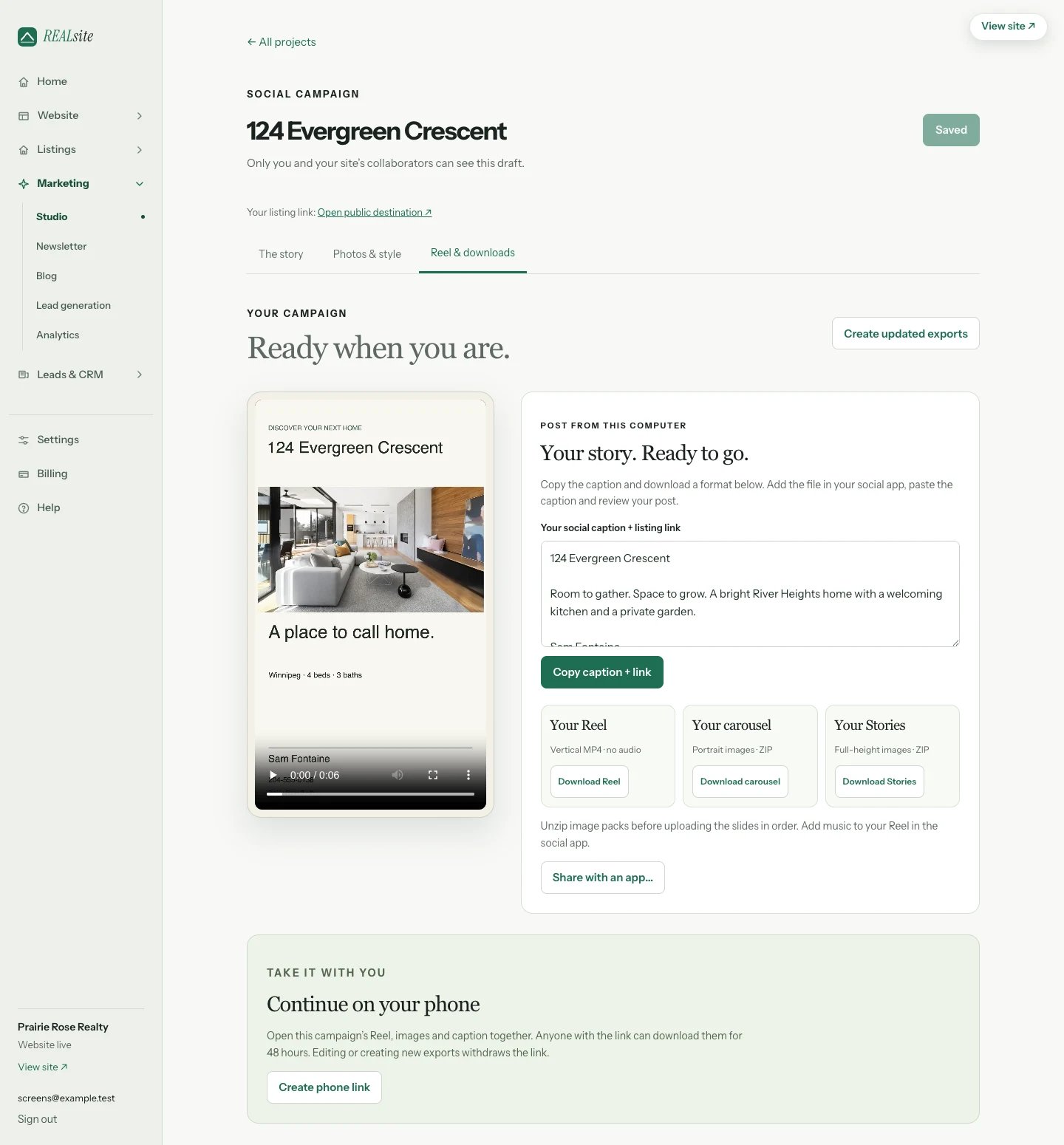
Play the finished Reel and review the image frames. Download the MP4 and
the carousel or Story ZIP files. Unzip the image packs before adding the
slides to your social app. Individual carousel images are also available.
The Reel has no audio: add music in your social app. **Copy caption +
link** includes your text and the available public listing destination. Check
that destination before posting; a website that is still coming soon needs
to be published or have a property website prepared for this home. Download
your chosen format, upload it in your social app and paste the caption.
To finish on your phone, choose **Create phone link** and scan the QR.
Your Reel, image packs and saved caption open together. The link lasts
48 hours; anyone with it can download the files. You can disable it, and
saving edits or creating new exports withdraws it automatically.
Where supported, **Share with an app… → Open share sheet** lets you hand
the prepared file to another app. Paste the caption there if needed.
You choose when to post.
## Before the listing appointment
You can make a seller presentation before connecting a feed. Have the property
address and your proposed marketing approach ready. Photos can come later; add
at least one before enabling a private presentation link.
Choose **Prepare a seller presentation**, enter the address and create the project.
In **Your presentation**, edit your introduction and approach. The testimonial,
timeline and signature controls are available when you need them. Under
**Your marketing timeline**, tailor the four starting steps—Prepare,
Introduce, Connect and Move forward—to this home. They describe your
proposed approach; they do not schedule a campaign.
Check your name, brokerage and contact details. Add a genuine testimonial
only if you have permission to use it; leaving it blank is fine.
Open **Photos & style** and upload up to eight photos, no more than 10 MB
each. Select and order the frames, then add short captions. Choose
the collection saved with your presentation for matching designs, or
Editorial, Modern or Warm for another treatment. **Show the whole photo** preserves the full
image; **Fill the frame** crops it to fit. Save your changes.
Open **Preview & share** and check the saved presentation on desktop and
phone. The collection layout shows proposed social and feature-sheet designs
using your supplied details. Check that they describe what you intend to offer.
For your collection design, choose **Prepare presentation PDF**, then
**Download presentation PDF** when it is ready. The Editorial, Modern and
Warm styles use **Open full preview → Print / Save PDF** instead; enable
background graphics in the print dialogue.
To share online, choose **Enable private link**, copy it and share it
yourself. Anyone with that link can view it. **Disable link** withdraws
access; saving an edit also withdraws it until you enable a new link.
REALsite sends no email from this workflow. A PDF is a separate downloaded
copy; disabling a link cannot withdraw a file someone already saved.
## When you have a listing to share
Use a home already available for marketing in **Listings**, with its photos
uploaded or downloaded from your authorized feed. You can also start there
with **… → Create Reel + carousel**.
Choose a format or **Create a social campaign** from Marketing. Select the
listing and open its saved campaign, or create a new variation. If the listing
needs details, finish and save them, then return to the selected task.
Review the address, property details, social caption and agent signature.
These are saved project copies. When source details change, review which
current fields to apply; your custom writing and design remain yours.
In **Photos & style**, choose up to eight photos. Use the arrows to order
them and give each frame a short caption. Keep the starting style or open
**Customize design** to adjust layout, colours, typography, framing and Reel
timing. On a phone, switch between **Customize design** and **Preview** to
check each adjustment. Save in the changes bar, then open **Reel & downloads → Create Reel + carousel + Stories**.
You can leave the page while the exports are prepared. Find the campaign
again in Home or Marketing’s recent work.
Play the finished Reel and review the image frames. Download the MP4 and
the carousel or Story ZIP files. Unzip the image packs before adding the
slides to your social app. Individual carousel images are also available.
The Reel has no audio: add music in your social app. **Copy caption +
link** includes your text and the available public listing destination. Check
that destination before posting; a website that is still coming soon needs
to be published or have a property website prepared for this home. Download
your chosen format, upload it in your social app and paste the caption.
To finish on your phone, choose **Create phone link** and scan the QR.
Your Reel, image packs and saved caption open together. The link lasts
48 hours; anyone with it can download the files. You can disable it, and
saving edits or creating new exports withdraws it automatically.
Where supported, **Share with an app… → Open share sheet** lets you hand
the prepared file to another app. Paste the caption there if needed.
You choose when to post.
 If you change the project, save and create fresh exports. For formats, storage
limits, retries and private-link details, see the [Marketing reference](/docs/help/marketing-studio).
This documentation is built and hosted on [Mintlify](https://mintlify.com), a developer documentation platform.
If you change the project, save and create fresh exports. For formats, storage
limits, retries and private-link details, see the [Marketing reference](/docs/help/marketing-studio).
This documentation is built and hosted on [Mintlify](https://mintlify.com), a developer documentation platform.