> ## Documentation Index
> Fetch the complete documentation index at: https://realsite.ca/docs/llms.txt
> Use this file to discover all available pages before exploring further.
# Your listings
> MLS® sync through DDF®, manual listings, and solds that keep selling for you.
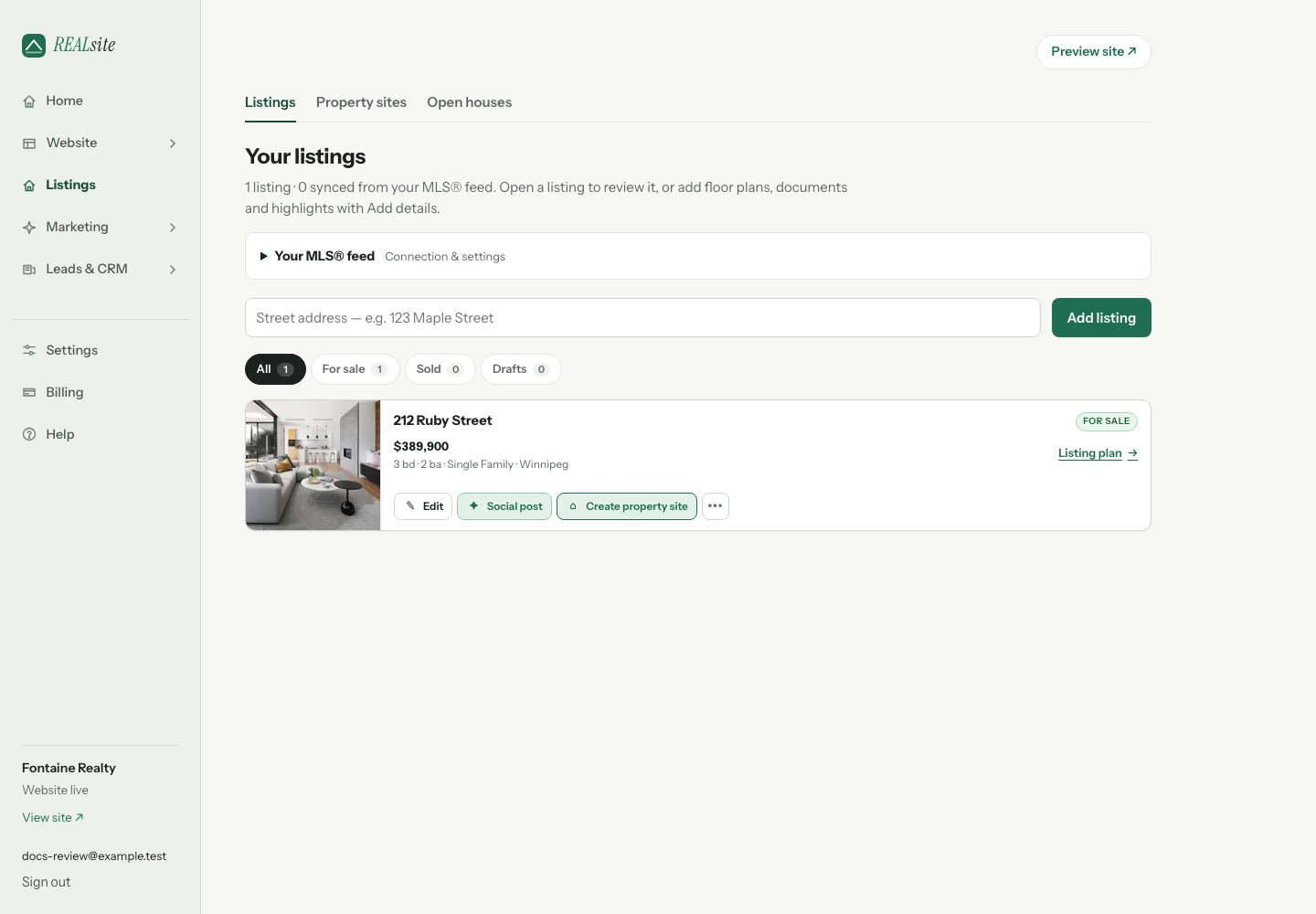 ## MLS® listings sync themselves
Start at **ddf.realtor.ca** (sign in with your REALTOR.ca account) and create a Member
Website Feed. CREA emails the feed's username and password to the technical
contact; paste them into **Your MLS® feed** on the Listings page. Your listings then flow in automatically —
full spec sheets, room dimensions, photos, the works. A video walkthrough
the feed carries becomes the listing's **Take the virtual tour** link, under
the photos, never mixed in with them. Syncs
run every 30 minutes; removals follow DDF® rules promptly.
Every listing gets its own page, appears on your listings map, and updates
itself when the data changes. You never retype a listing.
## See your site full before your feed arrives
While your site is still on its coming-soon page, choose **Add sample
listings** on the Listings page: six fictional homes, clearly marked, so you
can see every page and design with listings in it. They're never emailed,
never shown on a live site or a property website, and they're removed
automatically when your site goes live. **Remove samples** takes them out
any time.
## Add floor plans and extra details
Choose **Add details** on a synced listing. For a manual listing, open its
**…** menu and choose **Add details & files**, or use the same shortcut
under **Floor plans, documents & highlights** in its editor. Save your edits
before leaving the editor; if you have unsaved changes, the shortcut asks
whether to discard them or stay.
* Add property highlights, one per line, and a video or virtual-tour link.
Choose **Save details** to apply your text changes.
* Upload floor plans as PDFs or images, and other documents as PDFs.
Files save immediately. You can rename their display labels or remove them.
* Use **Preview saved listing** to check the result. Additions appear on the
listing page and its dedicated property site, when those pages are live.
MLS® details continue to sync automatically. Your additions stay separate,
so a feed update does not erase them or change another agent's website.
Upload documents intended for public viewing; each listing supports up to
20 files, up to 15MB each, within your account's storage allowance.
When a listing becomes unavailable, its files stop being publicly accessible.
Choosing **Keep as sold** during the retention window carries your additions
into the saved sold listing.
For a launch date and a few dated marketing tasks, choose **Listing plan** on an
active listing’s card. [Use listing plans](/docs/help/listing-plans) to prepare a
feature sheet, launch post, Reel and later Story in Marketing.
## Manual listings
Not everything lives on MLS®. Add exclusive or pocket listings by hand under
**Listings** — they get the same pages, the same map pins, and the same
marketing kits as feed listings.
## Which listings lead your home page
The home page's featured section shows your newest listings unless you say
otherwise. To lead with a particular one, open its **…** menu under Listings
and choose **Feature on home page**; it moves to the front, in the order you
featured them, and the newest fill the rest. The same menu un-features it.
## Solds are proof of work
When a listing sells and leaves the feed, you can keep it as a sold page on
your own map, with the details you supply. A visitor browsing your area sees not just what
you're selling, but what you've sold. (Your board's display rules are
respected throughout.)
## Sharing a listing
For a dedicated website, choose **Property site** on the listing, then open
**Listings → Property sites** to find it again. **Ready** means the listing
is available, the account can serve it publicly and its secure address is ready.
These websites can stay public while your main site is coming soon.
If a feed listing retires or a manual listing becomes incomplete, its property
site shows **Listing unavailable**. Open **Manage** to keep editing the saved
story or take the site down, or review the listing and use **Check again**
after restoring its availability. A development site waiting for handoff or
an account needing billing attention shows the corresponding next step.
Every listing row has a **Copy short link** action — a tiny address on your
own domain (like `yourname.ca/l3`) that counts every click. It's the link for
Instagram captions, and it's what the QR code on the printable feature sheet
points at, so you can see that the sheet you left on the counter got scanned.
For a video and image sequence, choose **… → Create Reel + carousel** on a
marketing-ready listing. The marketing tools let you select its photos, order
the frames and edit captions before exporting a Reel, carousel and Stories.
Use **Copy caption + link** to include the listing's tracked short link in your post.
[Follow the campaign walkthrough](/docs/help/walkthrough-marketing-studio).
This documentation is built and hosted on [Mintlify](https://mintlify.com), a developer documentation platform.
## MLS® listings sync themselves
Start at **ddf.realtor.ca** (sign in with your REALTOR.ca account) and create a Member
Website Feed. CREA emails the feed's username and password to the technical
contact; paste them into **Your MLS® feed** on the Listings page. Your listings then flow in automatically —
full spec sheets, room dimensions, photos, the works. A video walkthrough
the feed carries becomes the listing's **Take the virtual tour** link, under
the photos, never mixed in with them. Syncs
run every 30 minutes; removals follow DDF® rules promptly.
Every listing gets its own page, appears on your listings map, and updates
itself when the data changes. You never retype a listing.
## See your site full before your feed arrives
While your site is still on its coming-soon page, choose **Add sample
listings** on the Listings page: six fictional homes, clearly marked, so you
can see every page and design with listings in it. They're never emailed,
never shown on a live site or a property website, and they're removed
automatically when your site goes live. **Remove samples** takes them out
any time.
## Add floor plans and extra details
Choose **Add details** on a synced listing. For a manual listing, open its
**…** menu and choose **Add details & files**, or use the same shortcut
under **Floor plans, documents & highlights** in its editor. Save your edits
before leaving the editor; if you have unsaved changes, the shortcut asks
whether to discard them or stay.
* Add property highlights, one per line, and a video or virtual-tour link.
Choose **Save details** to apply your text changes.
* Upload floor plans as PDFs or images, and other documents as PDFs.
Files save immediately. You can rename their display labels or remove them.
* Use **Preview saved listing** to check the result. Additions appear on the
listing page and its dedicated property site, when those pages are live.
MLS® details continue to sync automatically. Your additions stay separate,
so a feed update does not erase them or change another agent's website.
Upload documents intended for public viewing; each listing supports up to
20 files, up to 15MB each, within your account's storage allowance.
When a listing becomes unavailable, its files stop being publicly accessible.
Choosing **Keep as sold** during the retention window carries your additions
into the saved sold listing.
For a launch date and a few dated marketing tasks, choose **Listing plan** on an
active listing’s card. [Use listing plans](/docs/help/listing-plans) to prepare a
feature sheet, launch post, Reel and later Story in Marketing.
## Manual listings
Not everything lives on MLS®. Add exclusive or pocket listings by hand under
**Listings** — they get the same pages, the same map pins, and the same
marketing kits as feed listings.
## Which listings lead your home page
The home page's featured section shows your newest listings unless you say
otherwise. To lead with a particular one, open its **…** menu under Listings
and choose **Feature on home page**; it moves to the front, in the order you
featured them, and the newest fill the rest. The same menu un-features it.
## Solds are proof of work
When a listing sells and leaves the feed, you can keep it as a sold page on
your own map, with the details you supply. A visitor browsing your area sees not just what
you're selling, but what you've sold. (Your board's display rules are
respected throughout.)
## Sharing a listing
For a dedicated website, choose **Property site** on the listing, then open
**Listings → Property sites** to find it again. **Ready** means the listing
is available, the account can serve it publicly and its secure address is ready.
These websites can stay public while your main site is coming soon.
If a feed listing retires or a manual listing becomes incomplete, its property
site shows **Listing unavailable**. Open **Manage** to keep editing the saved
story or take the site down, or review the listing and use **Check again**
after restoring its availability. A development site waiting for handoff or
an account needing billing attention shows the corresponding next step.
Every listing row has a **Copy short link** action — a tiny address on your
own domain (like `yourname.ca/l3`) that counts every click. It's the link for
Instagram captions, and it's what the QR code on the printable feature sheet
points at, so you can see that the sheet you left on the counter got scanned.
For a video and image sequence, choose **… → Create Reel + carousel** on a
marketing-ready listing. The marketing tools let you select its photos, order
the frames and edit captions before exporting a Reel, carousel and Stories.
Use **Copy caption + link** to include the listing's tracked short link in your post.
[Follow the campaign walkthrough](/docs/help/walkthrough-marketing-studio).
This documentation is built and hosted on [Mintlify](https://mintlify.com), a developer documentation platform.