

1. Create the file
Open Design → Code (the</> next to the Design title). Editing a
stock theme detaches your own copy first — the original stays untouched,
and History can always take you back.
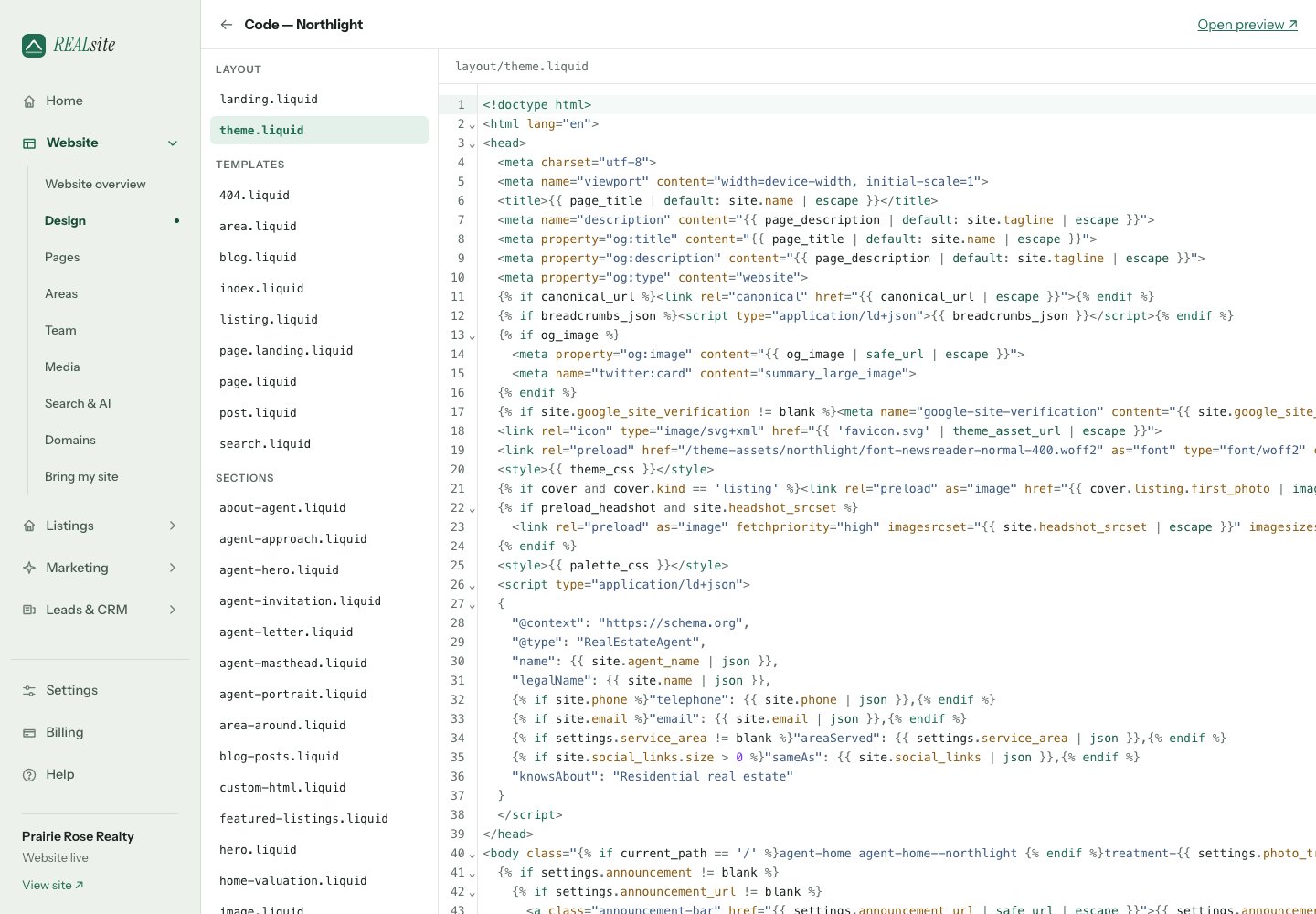
The code editor: every template in the theme, yours to edit.
sections/neighbourhood-spotlight.liquid:
section.settings.<id> connects them.
2. See it in Design
Save, open Design, click + Add section — “Neighbourhood spotlight” is in the list, and selecting it opens the settings panel your schema just described: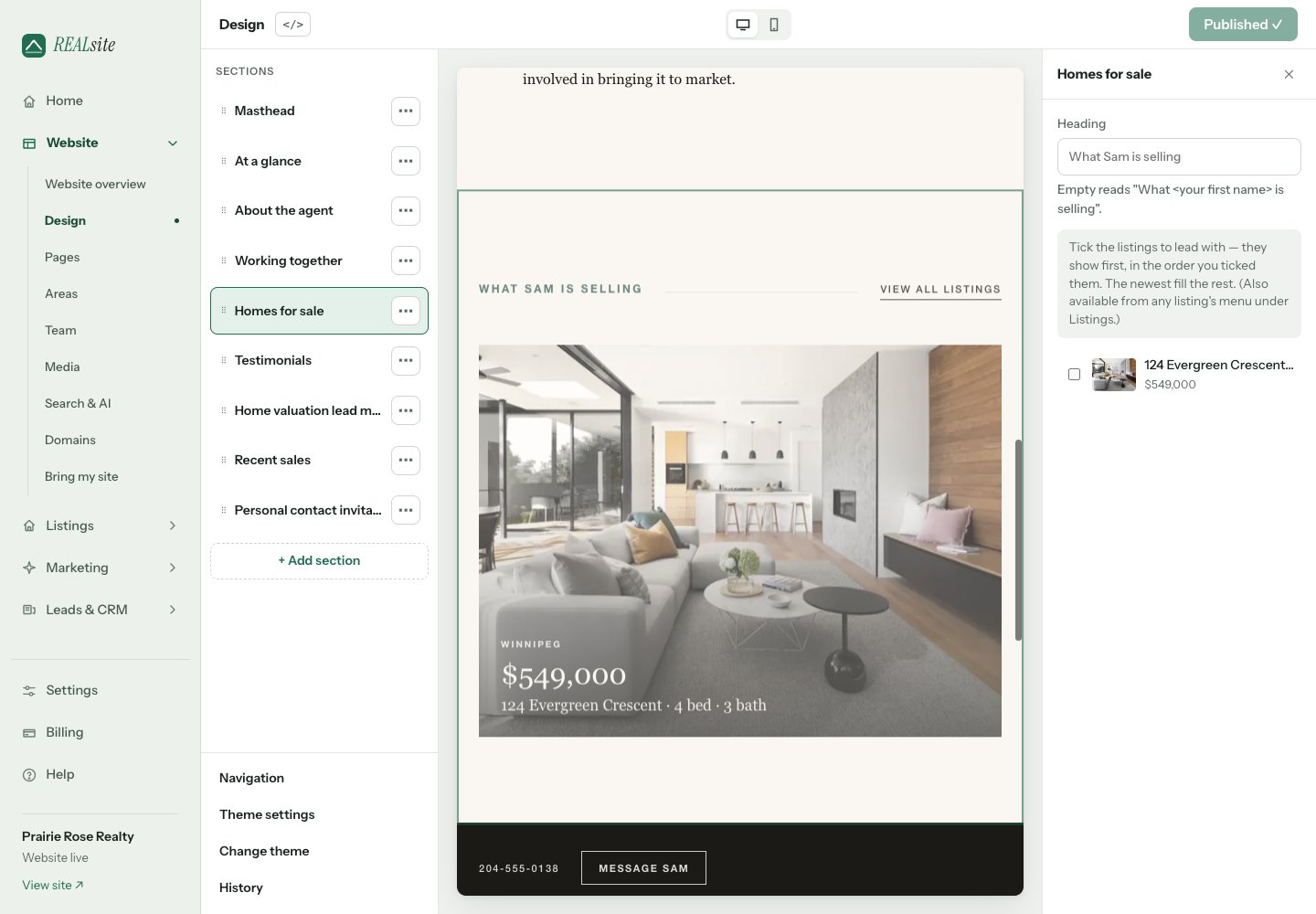
The schema becomes the settings panel — each setting id is a field.
3. Make it feel native
Steal the theme’s own vocabulary. The wrapper classes above (section,
shell, section-head, section-label, section-rule, button) are
Northlight’s — using the host theme’s classes means your section inherits
its typography, spacing, and colour scheme with zero CSS of your own.
Add custom styles to assets/theme.css only when the vocabulary runs out.
4. Level up: blocks
Want the owner to add repeatable items — quotes, FAQs, stats? Declareblocks in the schema and loop section.blocks. The platform’s
Testimonials section is a complete working example — see
Sections & schema.