A complete example
One listing.
See the whole story.
Sam has a home to market. Follow it from a property website to ready-to-share materials, then see how a buyer’s enquiry becomes a next step.
Sam, the home and the enquiry are fictional. The screens and downloads were made in REALsite.
01 · A place for the home
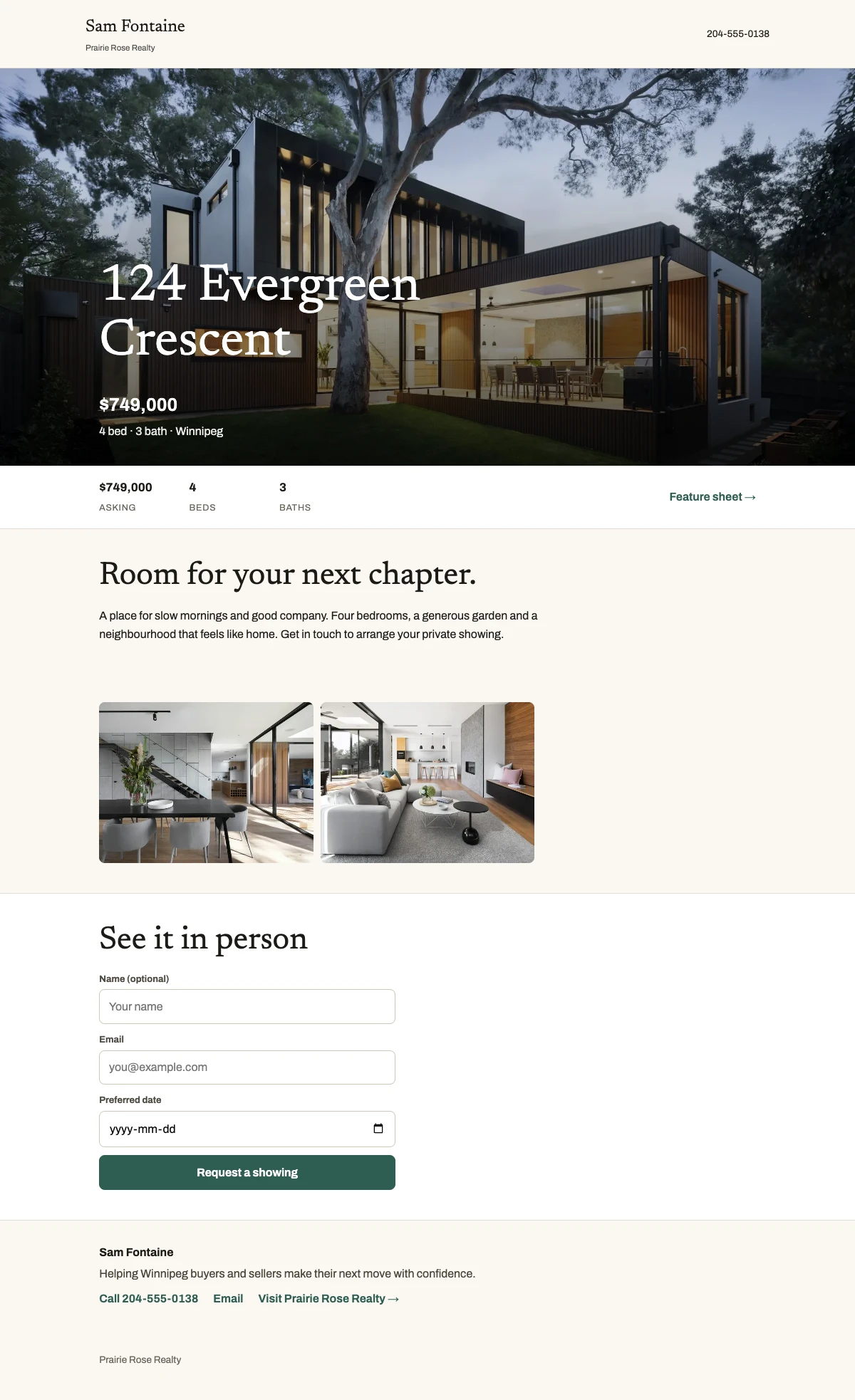
124 Evergreen Crescent.
Presented by Sam.
The photos, property details and Sam’s contact information come together on a dedicated property website. There’s a clear place for a buyer to ask about a showing.
The same listing also belongs on Sam’s main website. Its details are ready to use when he makes the marketing.
03 · Give it another format
The photos become a story.
In Marketing, Sam adds a short frame caption and chooses the photo order and timing. His campaign keeps those edits for next time.
- Play the 11.5-second Reel here.
- Download the Reel or the carousel and Story images.
- Add music and publish in your social app.
The Reel has no audio. Unzip the image packs before adding the slides to your social app.
04 · Continue the conversation
An enquiry with somewhere to go.
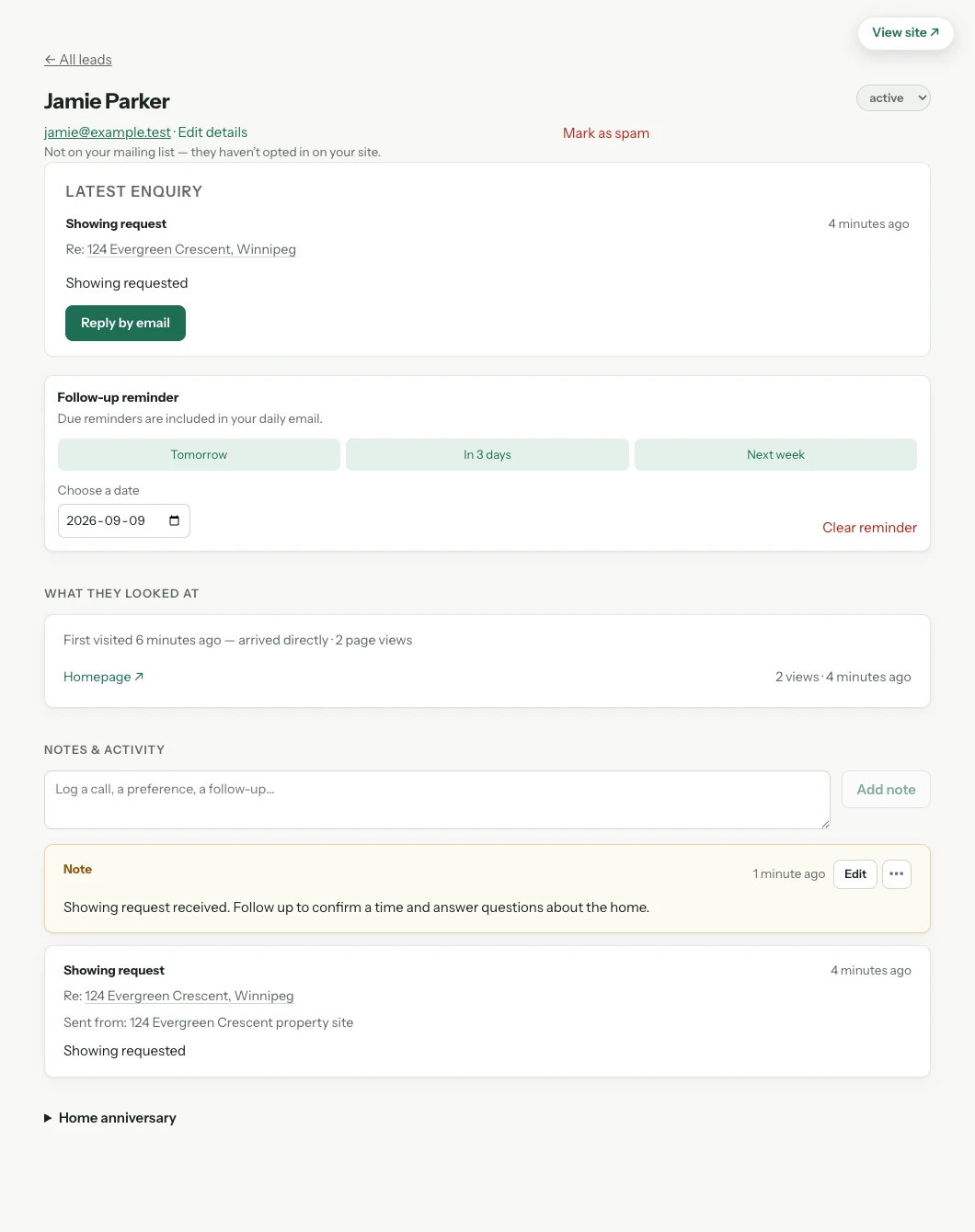
Jamie asks about a viewing through the property website. The enquiry arrives in Leads & CRM with the home attached, so Sam knows what started the conversation.
He adds a note and a follow-up date. When he returns, the message and next step are still together. Sending an enquiry does not automatically subscribe Jamie to newsletters.
Try your own material
Your next listing could start here.
Create your site and try a listing you’re authorized to market. Make one useful result before deciding about the move.
Request an invite →No card to start. $99 CAD/month per agent site.
The rest of your business
A workspace beyond this home.
Your agent website, seller presentations, newsletters, lead-generation pages and CRM are here for the work between listings, too. Each website look also has matching business cards, postcards, mail-drop flyers and feature sheets you can edit and export.
02 · Make the introduction
A post that feels like Sam.
The listing starts with a prepared social image and caption. Sam chooses a photo, edits the wording and saves the post with his Northlight collection.
He can change the colours, type, crop and words on the image. Or keep the prepared design and go straight to reviewing it.