

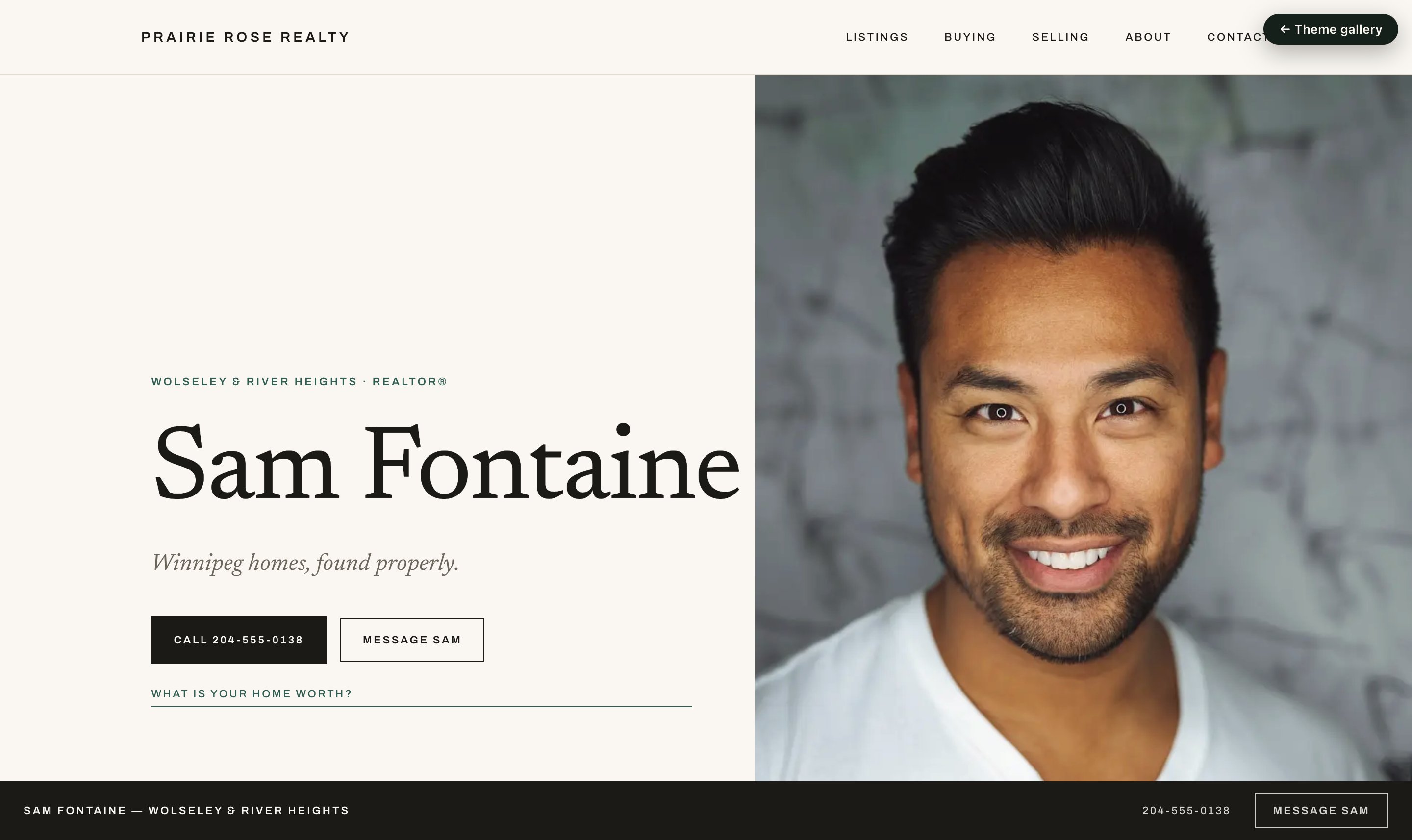
A site on day one — furnished, and ready the moment you flip it live.
Choose a useful first task
Choose the task that fits what you have today. You can return to website setup at any time; you do not need to try every tool first.- Have a seller conversation coming up? Open Marketing → Overview → Prepare a seller presentation. Start with the address and your proposed approach, then save and preview the plan. No listing feed is needed; photos can come later. Prepare the presentation.
- Have a listing to market? Open Listings → Social post on that home. Review the prepared image and caption, keep the design or customize it, and save a post you can return to. Review the public destination before sharing its link. Make a social post, or prepare a Reel and image sequence.
- Want to check how enquiries become conversations? Create a page under Marketing → Lead generation, review its public visibility, then submit a labelled test enquiry. Find it in Leads & CRM → Leads, record a note and set a follow-up. Try the full enquiry journey.
- Need a card or something to leave behind? Open Marketing → Overview → Print marketing. Business cards start with your profile; a feature sheet uses a listing. Edit the design and download a PDF. Make your first print material.
Signing in
You manage your site at realsite.ca/admin — one address, whatever your site’s own domain ends up being. Bookmark it. The first time, use the confirmation link in your inbox. It verifies the address that will receive lead notifications and starts your trial; until you confirm, the account is not signed in and the trial clock is not running. Stuck on anything? Help in the sidebar has the guides most people need and a form that reaches us with your site already attached — see Getting help.Find your way around
After the start screen, Home shows your launch checklist, new enquiries, due follow-ups and recent saved work, including exports being prepared, files ready to download and newsletters still sending or needing attention. Once your site is live, the checklist gives way to your ongoing work. Home and the Marketing overview refresh when you return to the tab. While exports or newsletter deliveries are in progress, they also check for updates. If a refresh fails, the last useful view stays visible with a retry link. Open a newsletter marked Sending needs attention to check its delivery counts.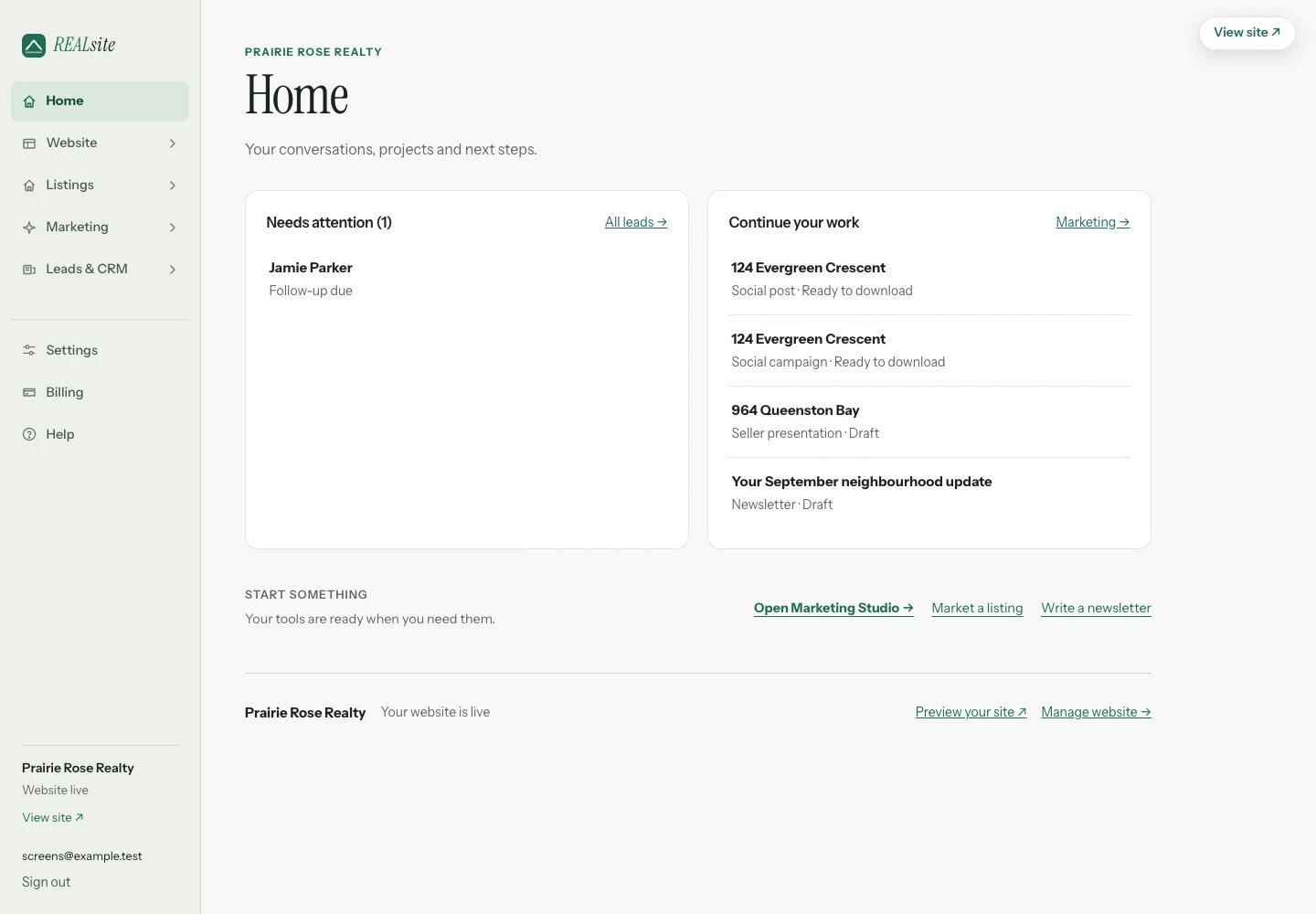
Home brings enquiries, recent materials and next steps together. Sample account shown.
- Home — pick up a draft or see what needs attention.
- Website — Design, Pages (with your area guides and blog as tabs), Team and Domains. The overview shows your site traffic and, if you are switching, the way to bring an existing site over.
- Listings — one page with tabs for property sites and open houses. Each listing’s action menu also opens its social campaign, open-house setup and enquiries.
- Marketing — Tools for presentations, social campaigns, listing plans and print materials, plus Newsletter and Lead generation.
- Leads & CRM — Leads, with an All contacts tab, and follow-up Automations.
The first hour
1
Look at your site
Your address is
yourname.myrealsite.ca from day one, and View site
in the admin shows you the real thing while visitors still see the
coming-soon page. Explore the pages and review the starter words and images
before publishing.2
Add your headshot and voice
Settings holds your name, phone, tagline, headshot, and your site’s
time zone (your morning digest and open-house follow-ups go by it).
Design is where you change how anything looks: pick a colour scheme,
rearrange sections. To try a theme, open the preview and use the theme
menu in the bar at the bottom; see Themes.
3
Your logo, if you want it
Headers show your site name until you upload a logo under Settings and
choose “Header shows my logo”. A wide PNG with a transparent background
looks best. Every other picture your site uses lives under Media; see
Media and your logo.
4
Connect your listings
Your MLS® listings sync automatically through your REALTOR.ca DDF® feed.
Start at ddf.realtor.ca (sign in with your REALTOR.ca account) and create a Member
Website Feed. CREA emails its username and password; paste them into Your MLS® feed
on the Listings page. There is nothing
extra to pay for the feed: DDF® comes with your CREA membership. See Your listings.
5
Moving from another platform?
Import your old site as drafts, review what transferred, and check the
saved redirects before moving your domain. See Bring my site.
6
Go live
When the site feels like yours, open Settings, choose Live, then
save. The status confirms when the saved visibility changes; selecting
Live alone does not publish the site. Publishing a page or its section
changes in Design does not change this website-wide setting.
Your own domain
Connect a domain you already own any time — the connection and SSL are included. New.ca and .com registrations and renewals through REALsite
Domains are charged separately. Until then your
myrealsite.ca address is available for visitors once you have saved Live
and your trial or subscription is active. When your domain moves,
everything (including any redirects from an imported site) follows it.
Every feature included
An agent site is 199 CAD/month and a brokerage site $249 CAD/month. Every REALsite feature is included in each plan. Each subscription covers its site; individual agent sites are separate from a team or brokerage site. See plans and billing details.Not on REALsite yet?
Every REALsite feature is included: agent sites are 199 CAD/month and brokerage sites 1.
Request an invite.