

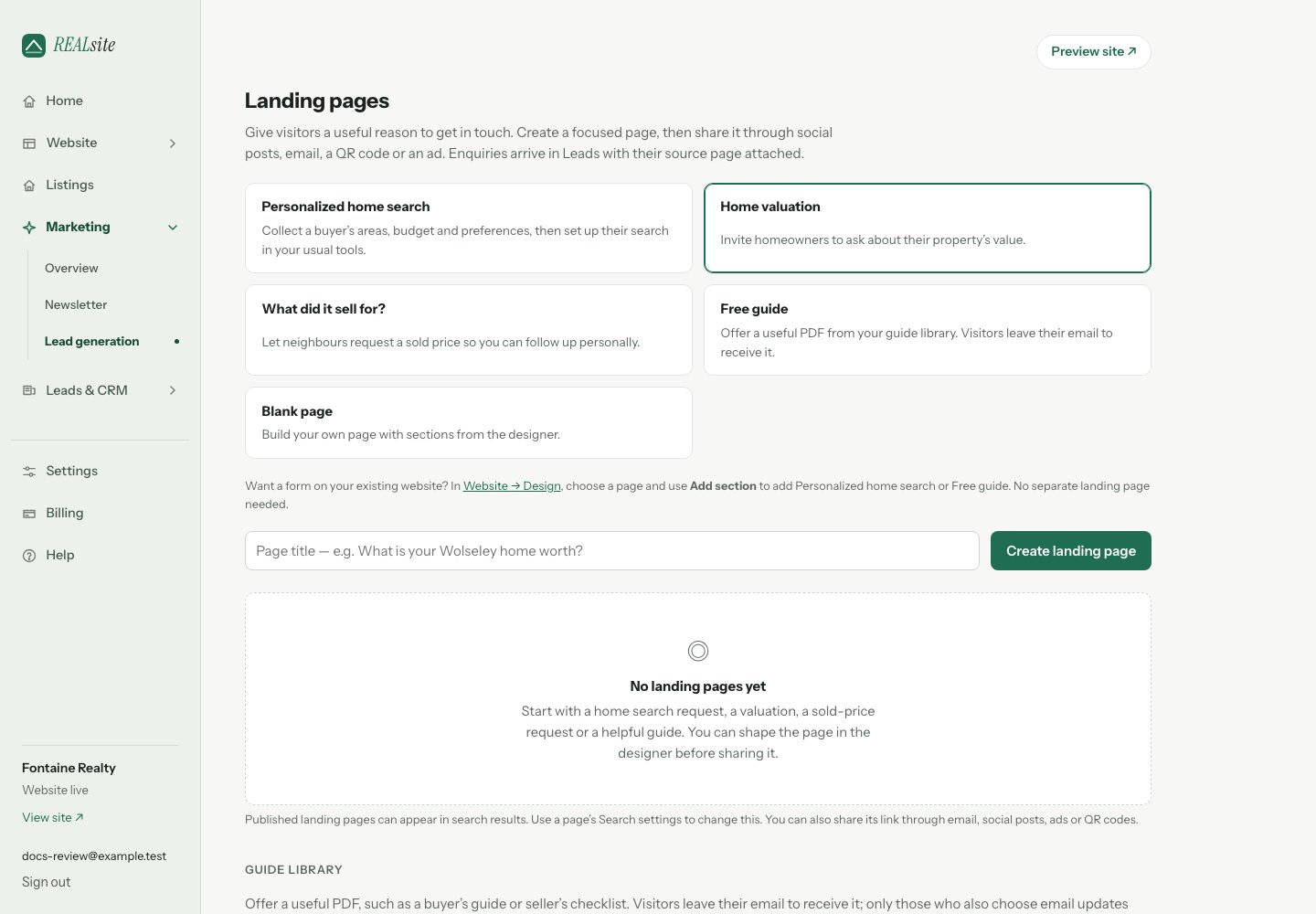
Create a focused page and see the enquiries attributed to it.
Create and review your page
Open Marketing → Lead generation, choose a starting point and name your page. Use a title that tells people what they will get, such as “What is your Wolseley home worth?”- Personalized home search — collect areas, budget and optional preferences. Review the request in Leads, copy the search brief, then set up the search in Matrix / OneHome or your usual tool and invite the buyer there. Search alerts do not start when this form is submitted.
- Home valuation — an introduction and a form for a property-value enquiry.
- What did it sell for? — a form requesting a sold price. You provide the answer personally, using information you are authorized to share.
- Free guide — choose a PDF from your guide library. If the library is empty, upload your guide first, then return to create the page.
- Blank page — start with an empty page and add sections yourself.
Published and ready to share
A page’s publication setting and your website’s visibility are separate. If the website is still coming soon, a published page on its address is Saved for launch. Use Review site visibility to open Settings, choose Live, then save. Check the public page before sharing it. An active, verified domain connected directly to a landing page can serve that page independently while the main website is coming soon. Your account must still have an active trial or subscription. A Not public status with Review billing points to an account that needs attention. When a page on your main site is publicly available, its action menu offers Copy short link for a counted link you can share. A page with its own verified domain offers Copy link to that domain directly, so sharing works even while the main site is coming soon. Clicks are useful activity signals; they do not establish that a visitor became a customer.Your guide library
Upload a PDF of up to 15 MB, such as a buyer’s guide or seller’s checklist. You can select it in the Free guide preset, or choose Make a landing page beside the uploaded guide to create a draft with that PDF already selected. The Free guide section in Design also lets you offer it on another page. A visitor submits their details to receive the download and becomes a contact. Requesting the guide does not automatically subscribe them to marketing emails; that uses the separate email-updates choice when offered. Review the form and selected file in preview before publishing.A domain for a campaign
Choose Domain settings beside the page to connect a domain you own or buy one through REALsite Domains. New.ca and .com registration and
renewal are charged separately. The verified domain opens this page directly;
your complete website keeps its own address. Use Copy link to share the
page at that domain.
Follow up on the result
Enquiries appear in Leads & CRM → Leads with their source page, and the Landing pages list shows the number attributed to each page. Open the contact to read the request, record a note and set a follow-up reminder. Walk through your first enquiry. Landing pages omit the usual navigation to keep the invitation focused. Published landing pages allow search indexing by default, so they can appear in Google and other search results. This does not guarantee inclusion or ranking. Open the page’s action menu and choose Search settings to add a search description or turn off Allow search engines to index this page, then Save. Turning it off asks search engines to exclude the page and removes it from the sitemap; the published page remains public and accessible by link. Search engines may take time to reflect a change. Draft pages stay private.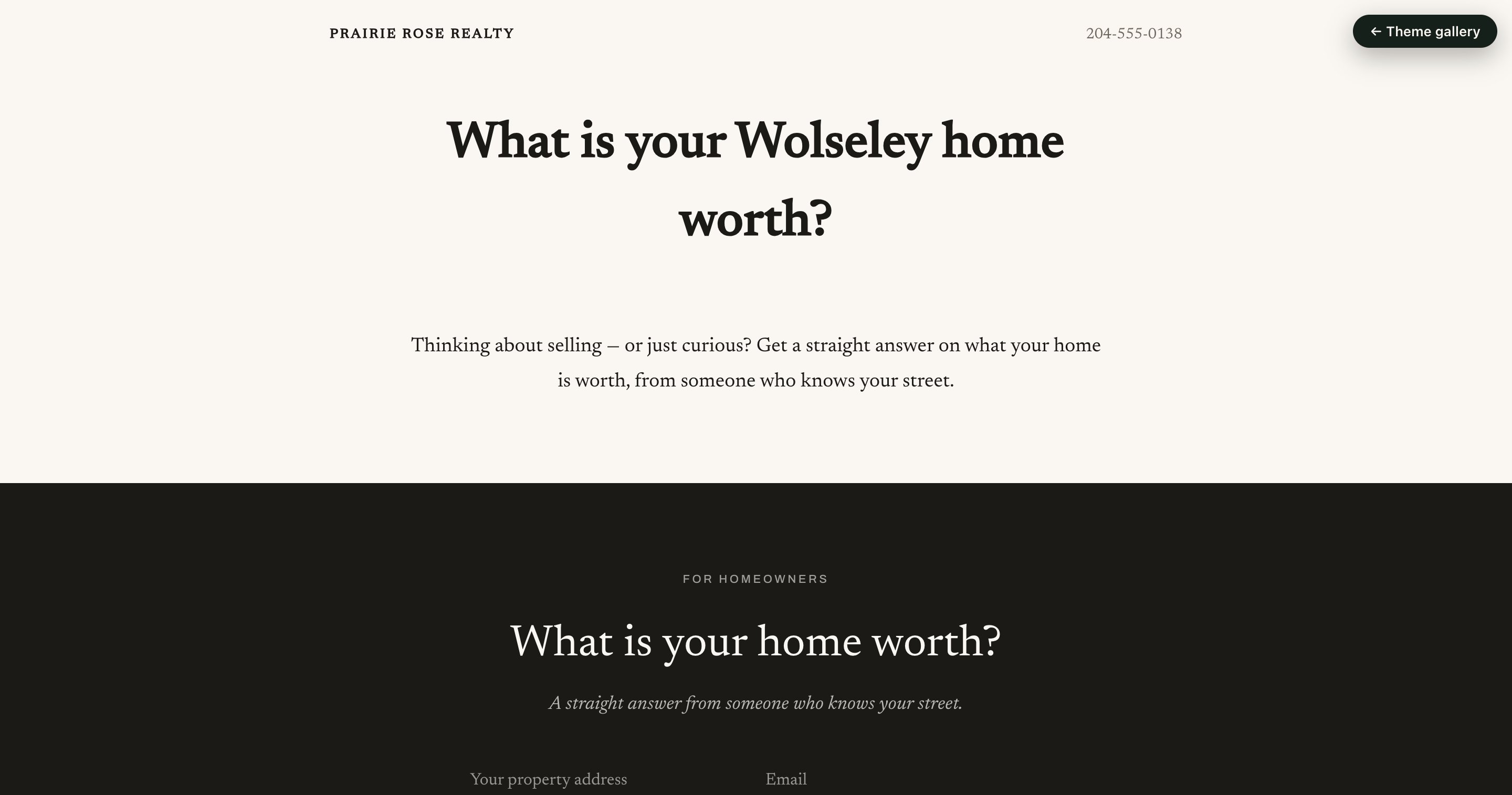
A visitor's landing page with a focused invitation and form.
Not on REALsite yet?
Everything in these docs is included in the one plan — 1.
Request an invite.