

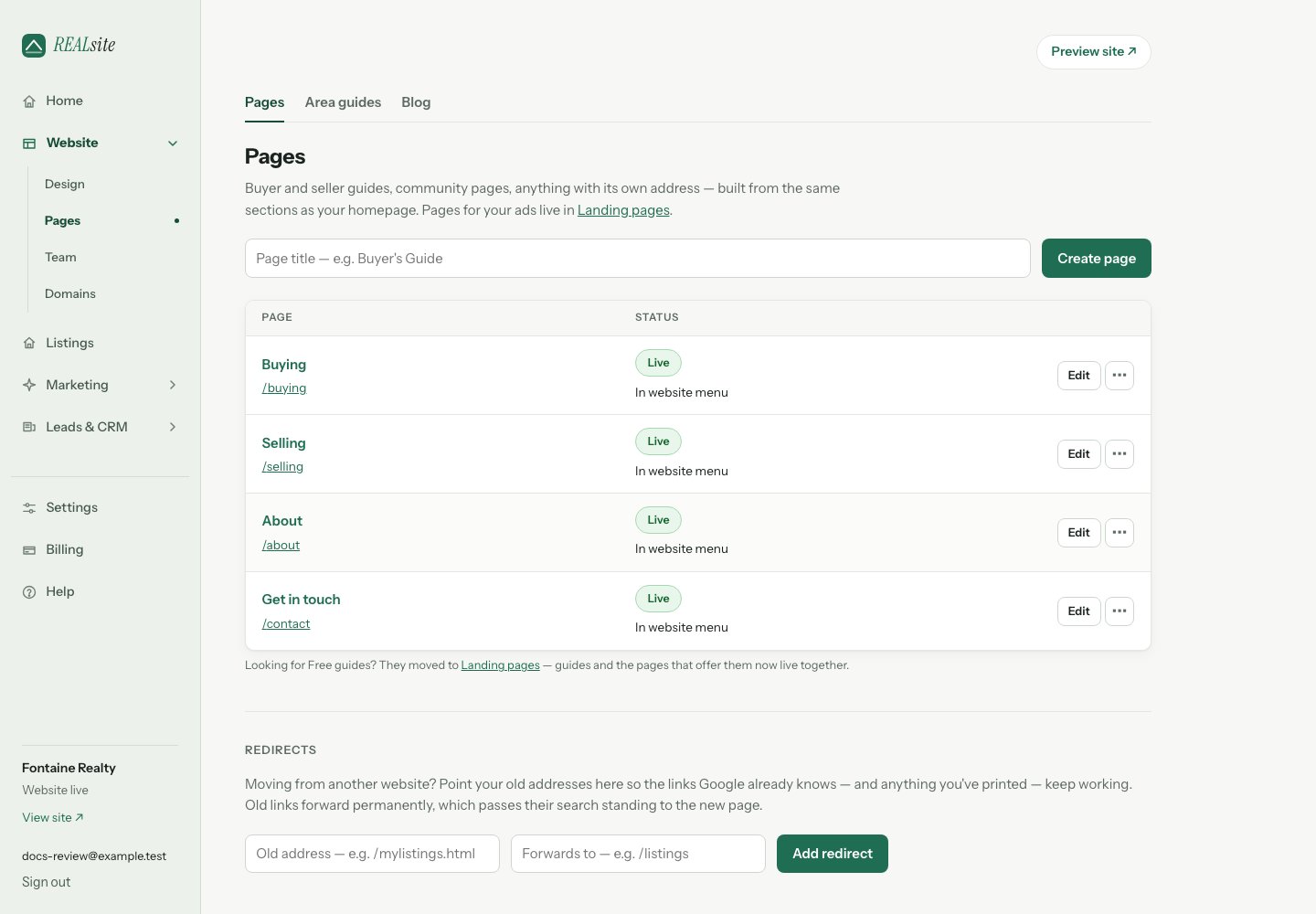
Pages: create, publish, and manage how each page appears in search.
Creating and editing
Create a page with a title — it arrives as a draft at/its-title and opens
in Design. Choose Start writing to add your first text section, or
+ Add section to choose from a few useful starting points. You can search
or Browse all sections for the complete library. Build your page
from the same sections as your homepage: text, valuation forms, featured
listings, mortgage calculators and guides. Working together adds editable
service or process steps; Personal contact invitation adds a message and
a button that opens your contact form.
Use Preview on site in the page’s action menu to review it privately.
Choose Publish on its row when it is ready, or Publish page in Design
for a page that is still a draft. Publishing section changes and saving a
page’s publication setting are separate from your whole website’s visibility.
After publishing, choose Add to menu in Pages or Add to website menu
in Design so visitors can find it. Existing links stay in place. To reorder
or remove links, open Design → Navigation. Menu placement is optional;
you can also share a page’s address directly. Unpublishing or deleting a page
removes its menu link so visitors are not sent to an unavailable page.
To unpublish a page, open its More actions menu and choose Unpublish.
Check that visitors can open it
The status in Pages tells you the next step:- Draft — the page is not available to visitors.
- Saved for launch — the page is published, but your website is still coming soon. Choose Review site visibility, select Live in Settings and save.
- Not public — choose Review billing to check the account’s access.
- Live — the page is available under its public address. Open that address in a private browser window to check the visitor experience before sharing.