

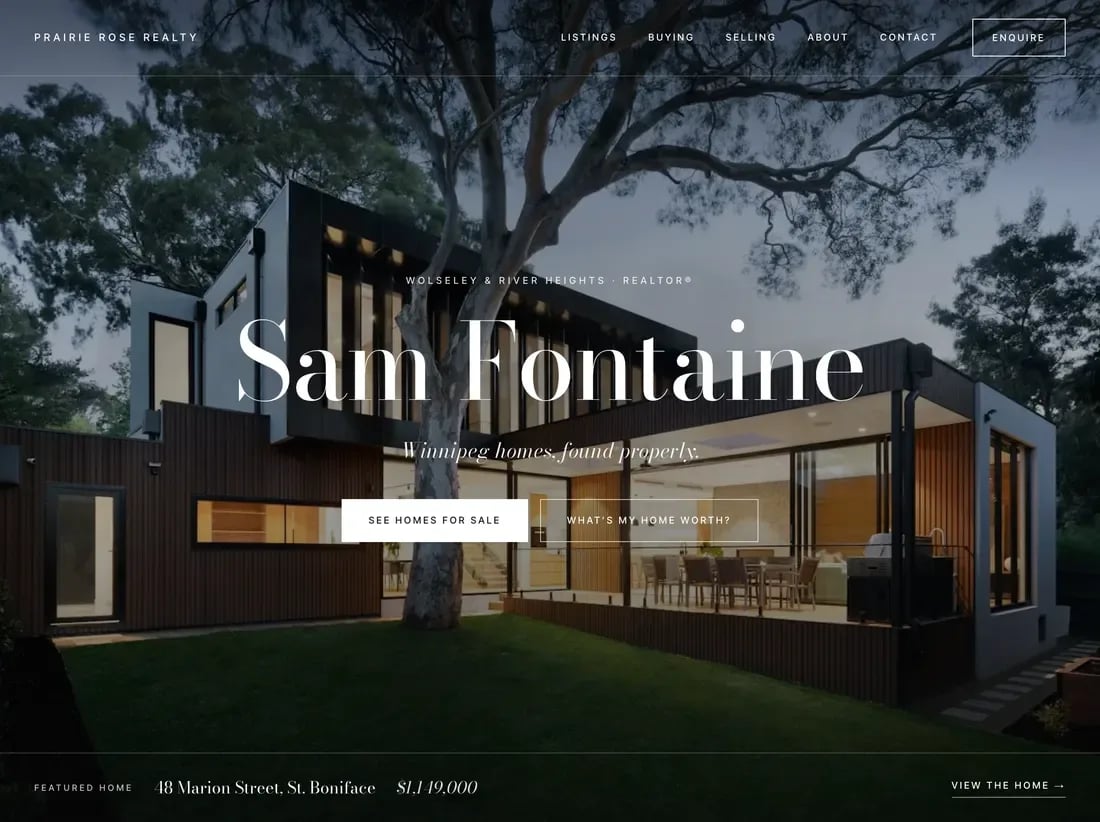
Laurier's homepage. The sample name, photograph and listings are replaced by your own.
Your homepage is you
The opening uses your existing profile: your name, tagline, About text and contact details. Each theme arranges that content in its own way. You do not need a second biography or a separate set of listings for each theme. The opening is the Cover section in Design. Its photograph is chosen under Design → Theme settings → Cover section → Homepage photograph:- Automatic uses your featured listing, or your highest-priced listing with a photo. That home is then left out of the listings below so it never appears twice.
- A named scene uses one of the included house photographs.
- Your own cover photo uses an image you add.
- My portrait puts your headshot in the opening instead of a home.
Edit your homepage
Open Website → Design and choose Cover, Masthead, Letter or your existing hero section. If you have a tagline, its Tagline field shows the same words as Settings. Edit it here and use Save to update it across your website. You do not need to publish a section draft for this shared profile change. If your tagline is empty, the section shows its own text field instead. That text follows the usual draft and Publish steps. Clearing a tagline returns to the section’s saved text; switching themes keeps both values.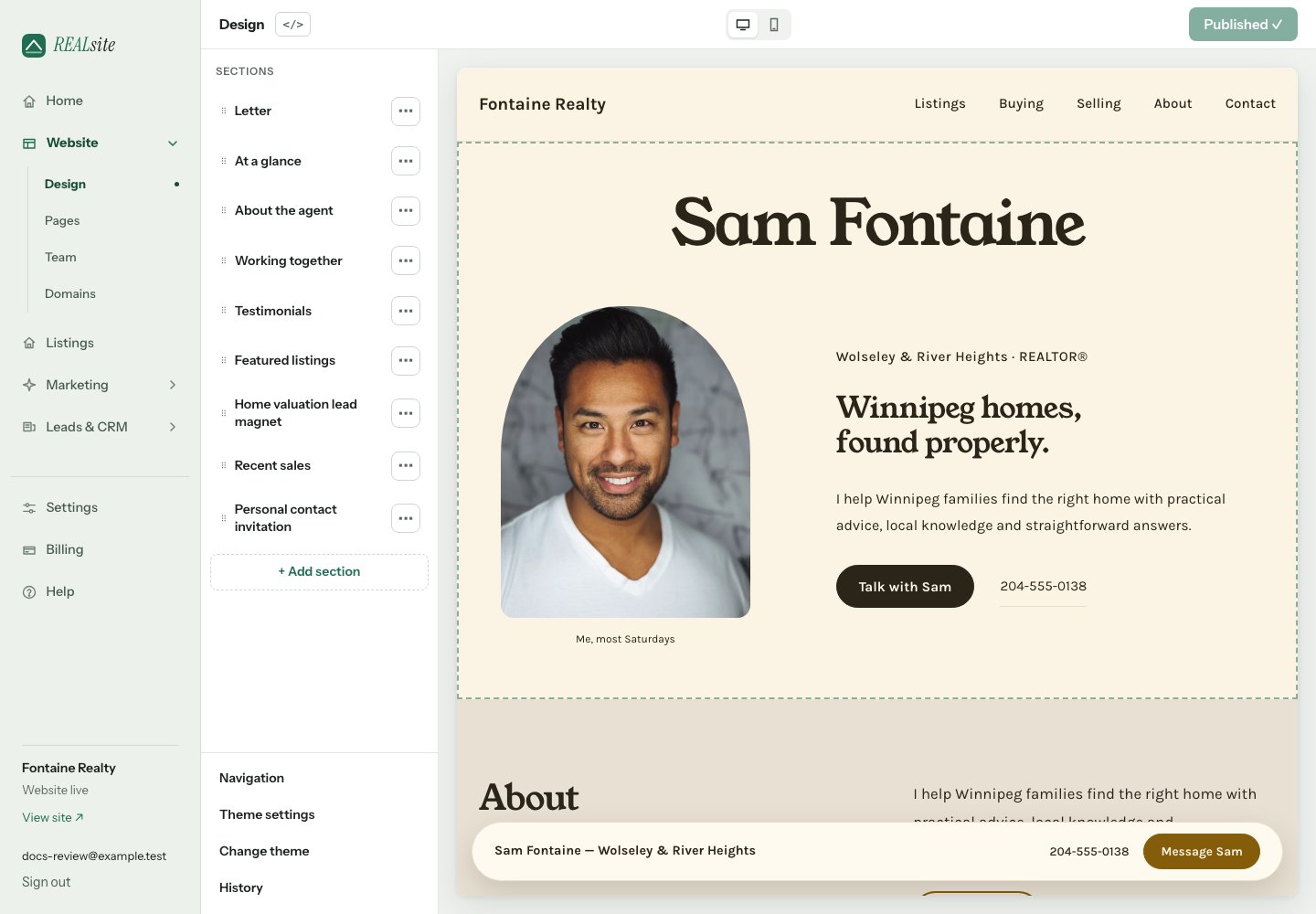
Design: sections on the left, your live site on the right — themes and colour schemes included.
- Open Design and select a section in the left-hand list to edit its settings. Use + Add section to see suggested sections with descriptions. Search by name or choose Browse all sections for the complete library.
- Add Working together to explain your services or process. Edit its heading and introduction, then add or edit the Service or step items. Use Move up, Move down or Remove item on an item’s menu.
- Add Personal contact invitation for a closing heading, short message and button label. Its button opens your site’s contact form.
- Preview the whole page, including the phone layout, then choose Publish to make section changes public. Section edits are saved as drafts first. Changes to shared profile text, such as your name or About text, update that profile rather than creating a separate section draft.