

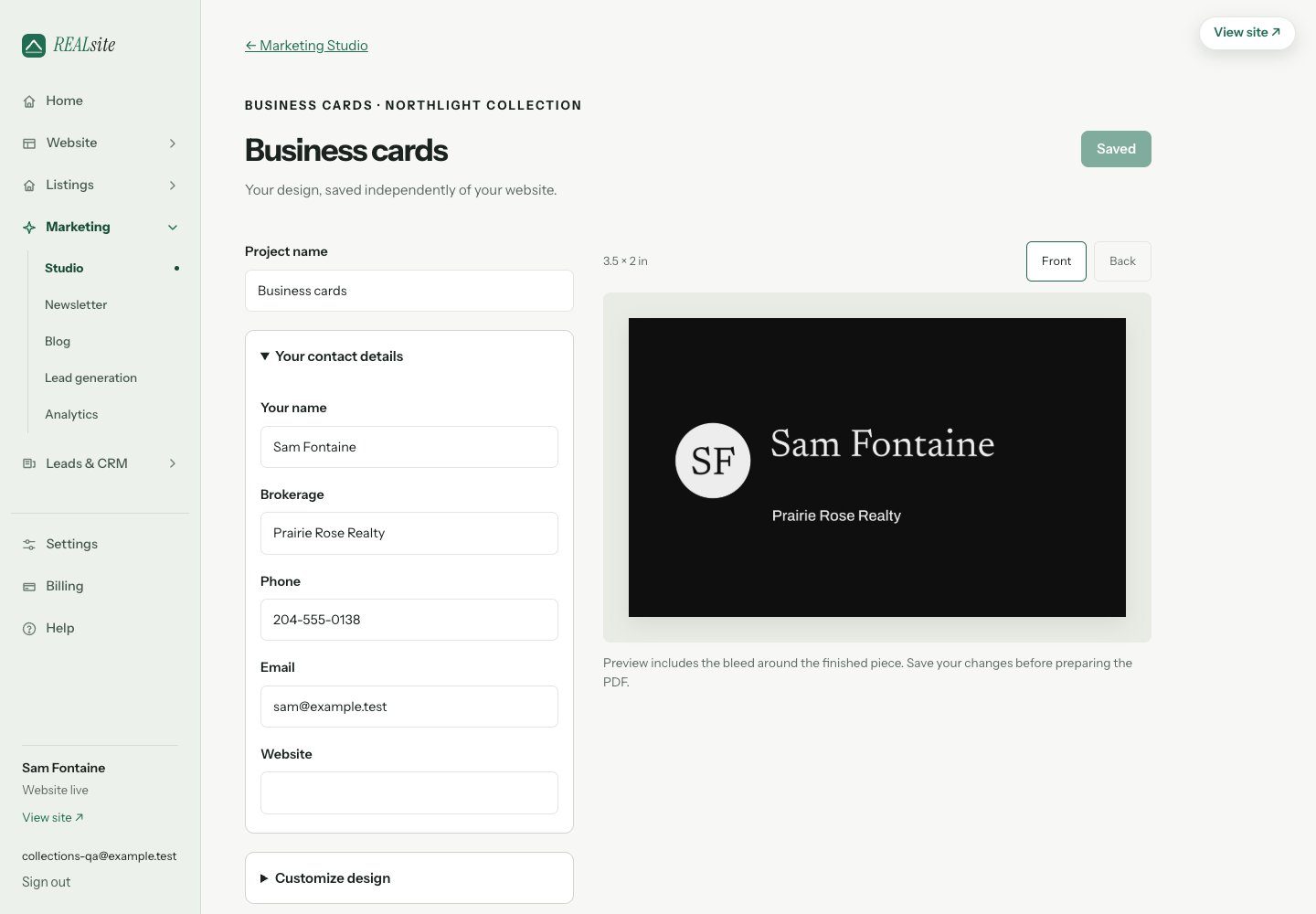
Business cards in the print editor. The sample agent and contact details are fictional.
Choose your format
Open Marketing → Overview → Print marketing and choose a format. Business cards start with your agent details. A feature sheet needs a listing; postcards and mail-drop flyers can use a listing or your agent details alone. You can also choose Design feature sheet from a listing’s action menu; that listing is already selected when the print editor opens.Edit, review and download
- Choose Create my design. Review the preview; use Front and Back for cards and postcards.
- Edit your name, brokerage and contact details. For property materials, check the address, price, facts and message. Open Customize design for optional colour and typography changes, or Photo & framing to choose a photograph.
- On a phone, switch between Preview and Edit details & design. Save your changes before exporting.
- Choose Prepare print PDF. Rendering continues if you leave the page. Return from Pick up where you left off or Your saved projects, then choose Download PDF.
Print specifications
The PDF page includes an extra ⅛ inch of bleed on every edge. Fonts are embedded;
colours are RGB. Ask your printer to confirm these specifications and print at
actual size. REALsite does not order printing, buy postage or distribute mail.
A preview notice identifies a photo that may be soft at print size. Use an
original, high-resolution photograph where possible. If text will not fit at a
readable size, shorten the indicated text. Check both sides and contact details
before sending the PDF to a printer. A feature-sheet QR appears only when a
public destination is available.
If the listing changes, Listing details changed — review updates shows saved
and current values. Select the updates you want, review the design and prepare
a new PDF. Previous downloaded or printed materials cannot be updated remotely.