

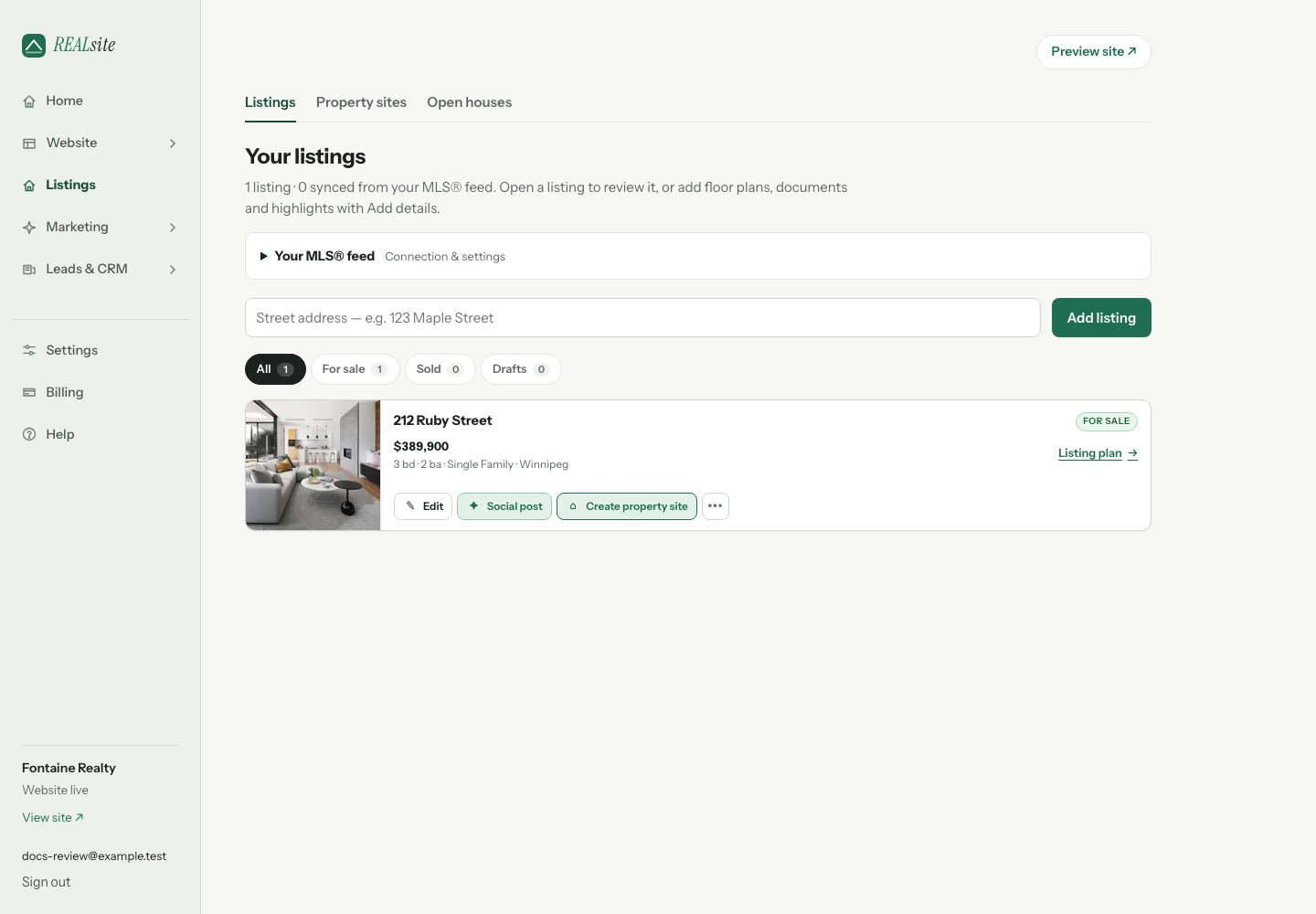
Every listing puts its social post and focused property site front and centre.
The social post
Open Listings and choose Social post on a home. The first open prepares a branded image and a caption for you to review. REALsite saves the kit with the listing and includes an available public destination when you copy or share it. If the agent website is still coming soon, review the guidance for publishing it or preparing a property website before posting a link. From then on the button says Open social post: reopen it to copy the caption and tracked link, download the image, or scan Continue on your phone. If you edit the caption, choose Save caption for phone before scanning; this saves your words without regenerating the image or using AI. The QR stays available on desktop even when the browser also supports native sharing. On a supported device, Share with an app… prepares the image. Choose Open share sheet, then finish the post in your social app. Some apps require the caption pasted separately. Copying and downloading remain available.Optional design edits
New social posts start with your website collection. Open Customize design to keep the collection layout or choose Classic, Editorial or Bold; adjust colours and typography; select the hero photo; and move its crop horizontally or vertically. Words on the image lets you edit the small heading, headline or price, address and signature separately from the social caption. The image preview reflects unsaved design changes. Choose Save design before downloading or switching devices. Reset to brand defaults resets appearance while keeping your words. Each post keeps its own saved choices. After a website theme change, Use my website’s current collection applies the new look to this post. Review it and choose Save design. When the listing or branding changes, Review this saved post → Review current details shows what changed. Update listing details in this design updates unedited image details; your caption and custom image wording stay as written. Check those custom words yourself before sharing an older post. Open Need a different starting point? → Regenerate AI caption only when you want a new AI draft. This preserves the saved design and image wording.The Reel, carousel and Stories
Open Create Reel + carousel from a listing, or open Marketing → Overview → Create a social campaign. Choose photos, order the frames, edit captions and export a vertical MP4 plus carousel and Story image packs. See the marketing workflow. Before a home is listed, you can also prepare a personalized seller presentation with your marketing plan, a private link and a printable PDF. Make your first presentation and campaign.The property site
Choose Create property site on any listing to give the home a focused website of its own: photos, story, details, showing request, feature sheet, and your branding. REALsite confirms the exact address before creating anything. Its secure address can take a minute or two to finish setting up; the admin shows Setting up its secure address and changes to Ready when it is safe to open. Once it exists, the same button reads Manage property site. Every property site is also collected under Listings → Property sites in the admin, so it is easy to get back to, share, or manage later. When a home sells, its site becomes a sold story that raises home-valuation leads. Choose Use your own domain to put the property address on the lawn sign, feature sheet, and social posts. You can buy the domain through REALsite Domains—registered in your name with the correct records applied—or connect one you already own. The normal.myrealsite.ca address keeps working while
the secure custom address finishes setting up.
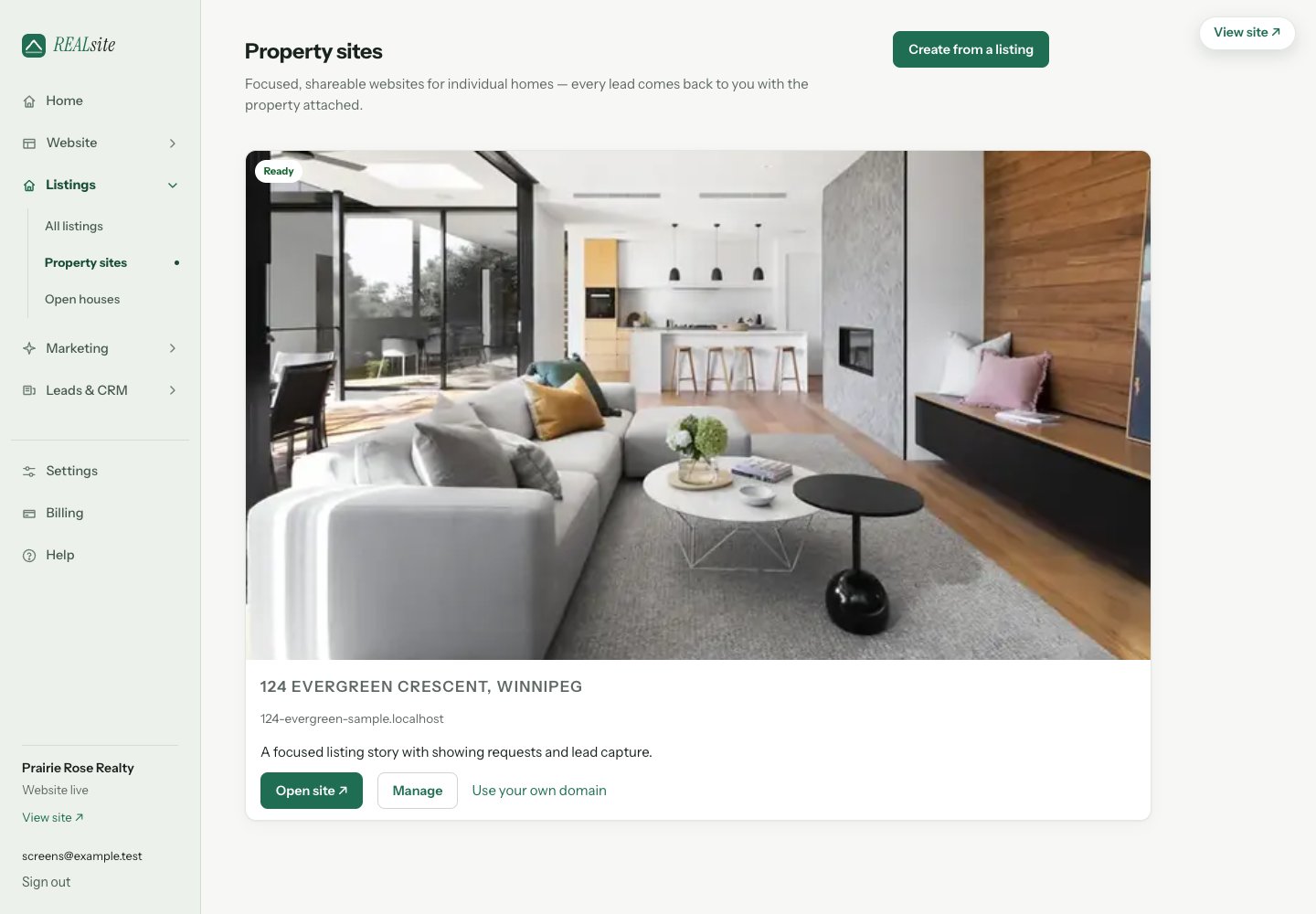
Every focused property site stays easy to find, share, and manage.
The feature sheet
Choose Design feature sheet from the listing’s action menu, or Marketing → Overview → Print marketing → Feature sheets. Review the listing details, choose a photo and edit the message and design. Save your project, then choose Prepare print PDF and download the finished file. The finished sheet is letter-sized, with ⅛ inch bleed around the PDF page. A QR is included when a public listing destination is available. Check that destination and the property details before printing. Print editing, sizes and PDF specifications.The open-house poster
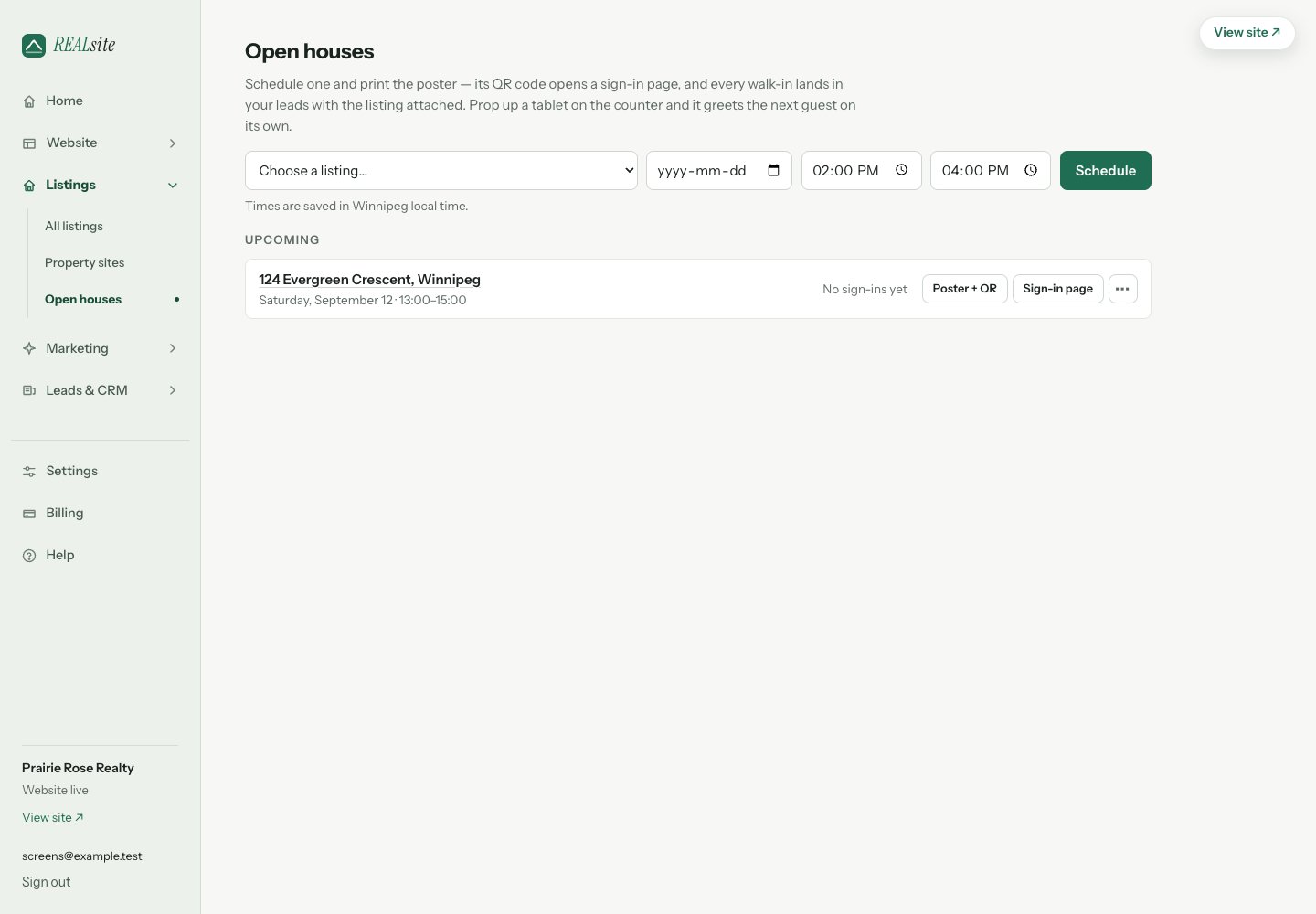
Upcoming and past open houses keep their sign-ins, posters, feature sheets, and sign-in pages together.